如何使用 AMusicSoft Deezer 音乐转换器
部分1。 如何注册 AMusicSoft Deezer 音乐转换器
步骤 1. 下载并安装 AMusicSoft Deezer 音乐转换器
您可以从产品页面下载安装包,或者直接点击此处提供的下载按钮。AMusicSoft Deezer音乐转换器目前支持Mac和Windows设备。
步骤 2. 激活 AMusicSoft Deezer 音乐转换器
免费试用用户须知:如果您正在使用免费试用版,可以直接启动程序并探索其所有功能。免费试用版仅允许您转换 Deezer Music 上的 3 首完整歌曲。如需转换更多曲目且无任何限制,您需要注册并激活完整版软件。(如需购买 AMusicSoft 许可证,您可以访问AMusicSoft 在线商店。免费试用用户也可以联系我们的客户支持团队,了解最新的促销活动和特价优惠。)
付费用户:点击左下角的个人资料图标,然后选择“使用许可证登录”。输入您购买软件时使用的邮箱地址和注册码/许可证密钥。点击“登录”完成激活。
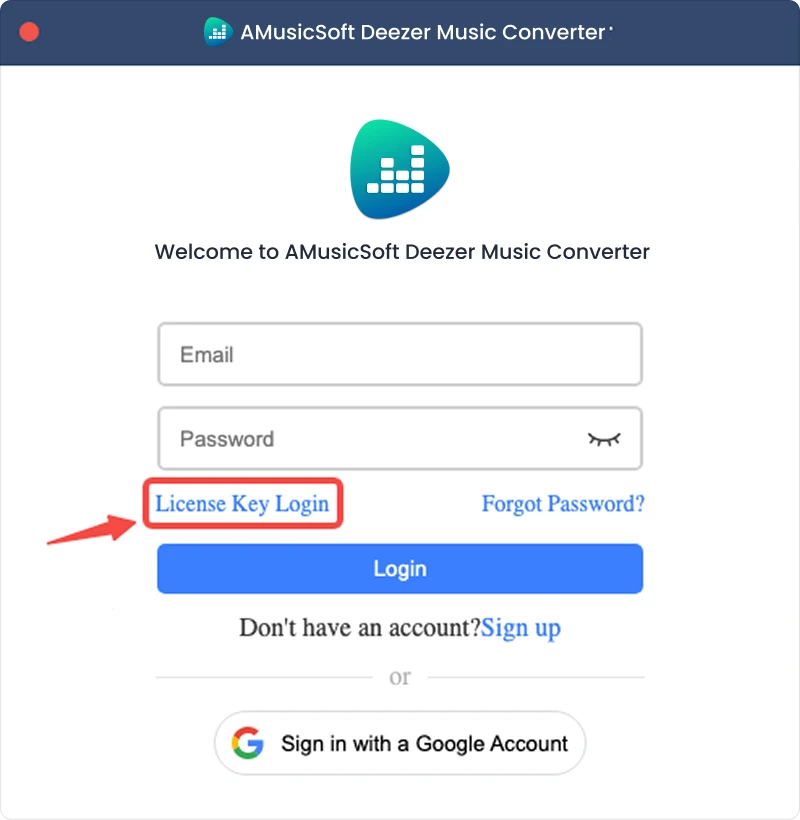
注意:请确保输入与购买时关联的电子邮件地址,并使用正确的注册码。验证过程可能需要连接互联网。
部分2。 如何将 Deezer 音乐转换为您喜欢的格式
第一步:选择 Deezer 音乐
启动 AMusicSoft Deezer 音乐转换器。在主界面上,选择 Deezer。
第二步:登录 Deezer Music
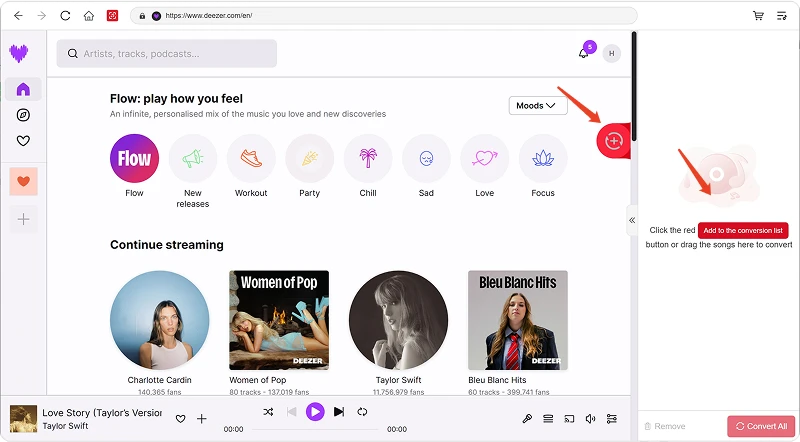
AMusicSoft Deezer音乐转换器集成了所支持音乐平台的官方网页播放器。选择Deezer后,使用您的Deezer帐户登录即可搜索和下载音乐。
步骤二:为程序添加音乐
登录后,浏览您的音乐库,选择您想要的歌曲、播放列表、专辑或播客。点击歌曲或播放列表旁边的“添加到转换”按钮,将其添加到转换列表中;或者将音乐拖放到悬浮的“+”图标上。
内容可用性:任何歌曲或专辑的可用性完全取决于您使用的帐户的订阅状态和地区权限。
步骤 4. 选择输出格式并自定义输出设置
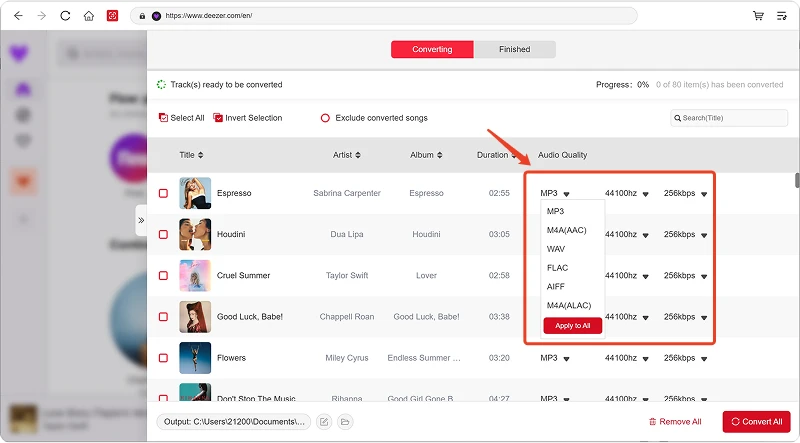
添加音乐后,打开“输出格式”菜单选择您所需的格式。AMusicSoft Deezer 音乐转换器还允许您根据需要调整可用的输出参数,例如比特率、采样率等。最后,点击输出路径或文件夹选择选项,选择文件的保存位置。如果您不熟悉这些设置,可以保留默认配置以简化转换过程。
第四步:开始转换音乐
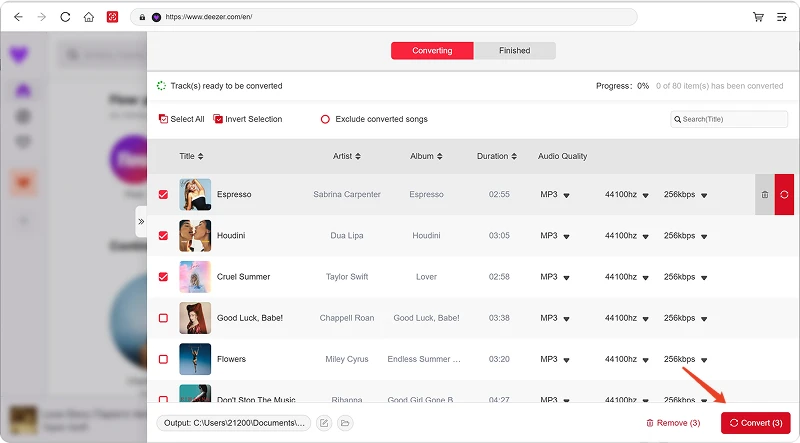
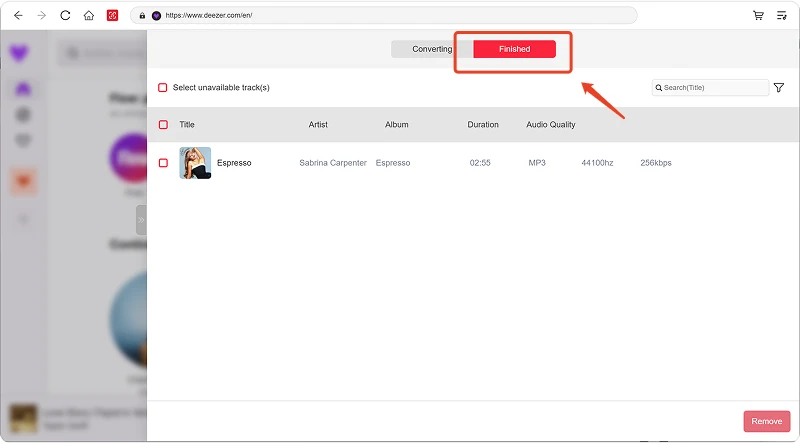
所有设置配置完成后,请查看转换列表并点击“转换”按钮。软件将开始处理所选的音乐文件。您可以通过进度信息监控转换状态。对于批量转换,您可以添加多首歌曲并一起处理,而无需单独转换每个文件。
步骤 6:查找转换后的音乐
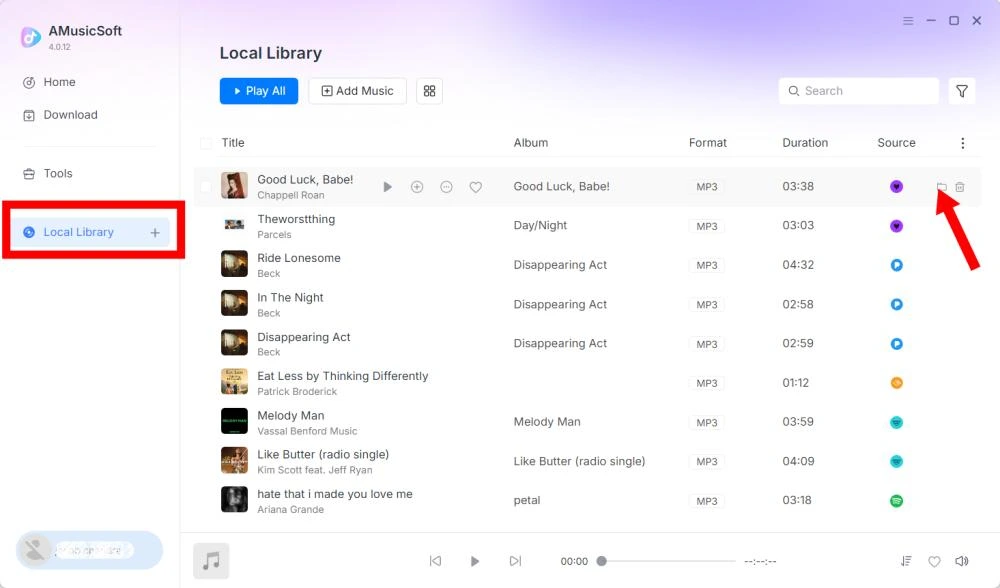
转换完成后,打开选定的输出文件夹即可访问转换后的文件。然后,您可以将文件传输到兼容设备、整理到本地音乐库或使用支持的媒体播放器播放。
部分3。 如果我无法下载音乐该怎么办?
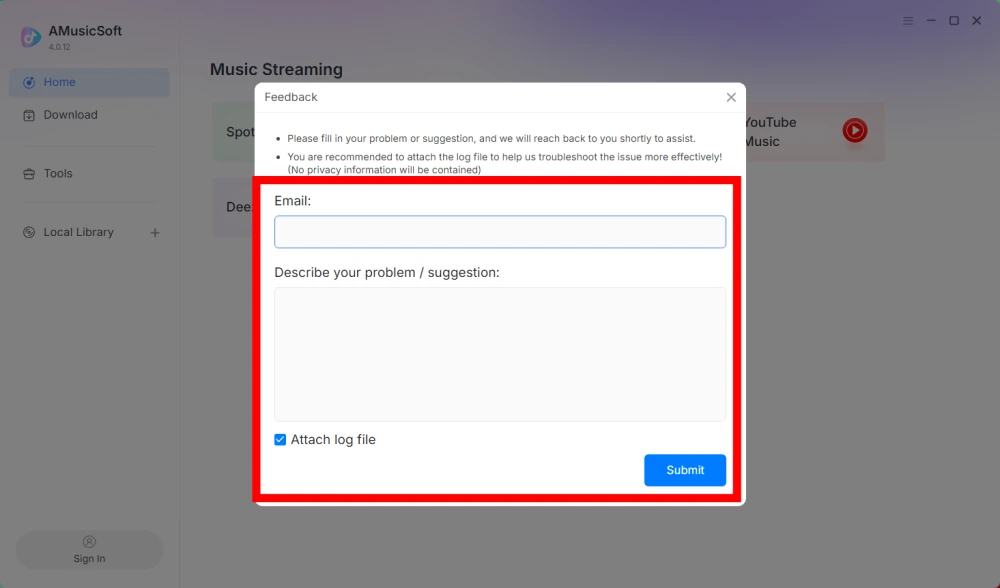
如果您在下载或转换音乐时遇到问题,请将软件日志和错误截图提交给我们的支持团队。这些信息将有助于我们更快地识别问题并提供解决方案。
- 点击程序右上角的菜单,然后选择“发送反馈”。
- 请在文本框中描述您的问题并写下您的许可证密钥。
- 最后,请在提交前勾选“附加日志文件”复选框。
部分4。 如何预设输出设置和音频参数
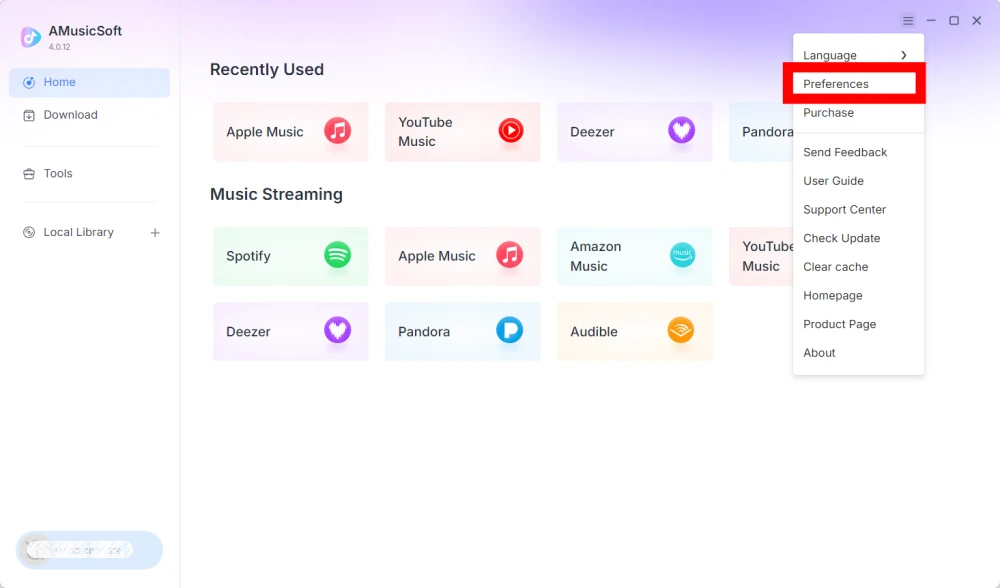
AMusicSoft Any Music Converter 允许您自定义下载设置和音频参数,从而控制转换过程和输出质量。您可以在开始转换前直接从转换列表中调整这些设置,也可以前往“菜单”>“首选项”预先预设您所需的参数。
语言
请选择您偏好的软件界面语言。
常规设置
- 外观 - 自定义软件界面外观。
- 输出文件夹 - 选择保存转换后文件的文件夹。
- 自动命名模式 - 自定义文件命名格式。
- 按归档方式 - 选择如何整理下载的音乐。
- 转化后 - 选择转化完成后要执行的操作。
- 保存音乐 - 启用或禁用保存转换后的音乐文件。
- 歌词 - 启用或禁用将歌词与音乐一起保存。
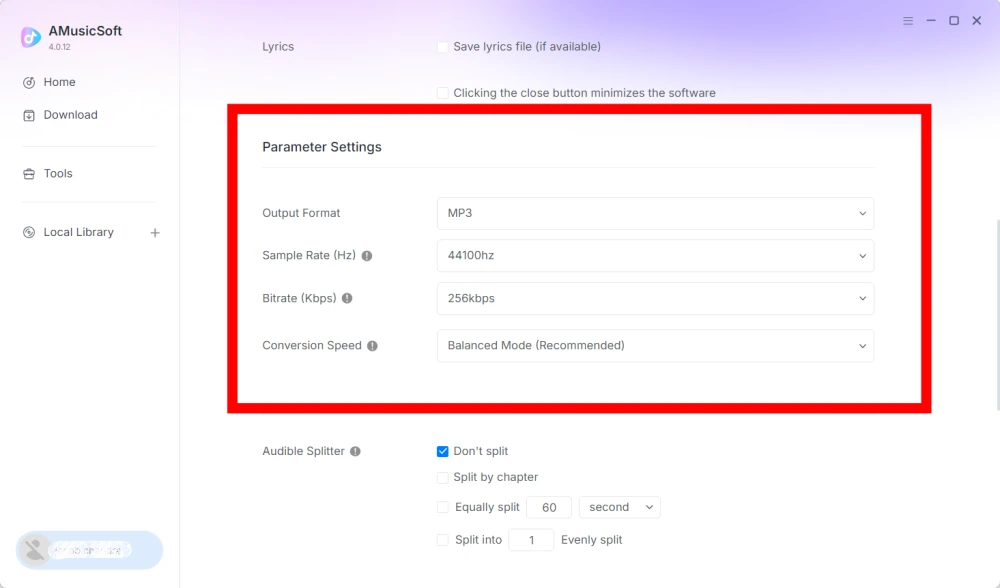
参数设定
- 输出格式 - 选择所需的音频输出格式。
- 采样率(Hz)- 设置音频采样率。(范围从 22050Hz 到 48000Hz。)
- 比特率(Kbps) - 设置音频比特率以控制输出质量。(范围从 128Kbps 到 320Kbps。)
- 转换速度 - 根据您的需要调整转换速度。
- Audible Splitter - 将 Audible 有声读物分割成更小的部分。
播放设置
歌曲淡入淡出 - 实现播放过程中歌曲之间的平滑过渡。
网络设置
- 同时下载 - 设置要同时下载的音乐文件数量。
- 代理 - 配置网络连接的代理设置。
其他设置
弹出窗口 - 启用或禁用弹出式通知。
部分5。 如何管理您的 AMusicSoft 帐户
您可以通过账户中心管理您的 AMusicSoft 账户和订阅信息。
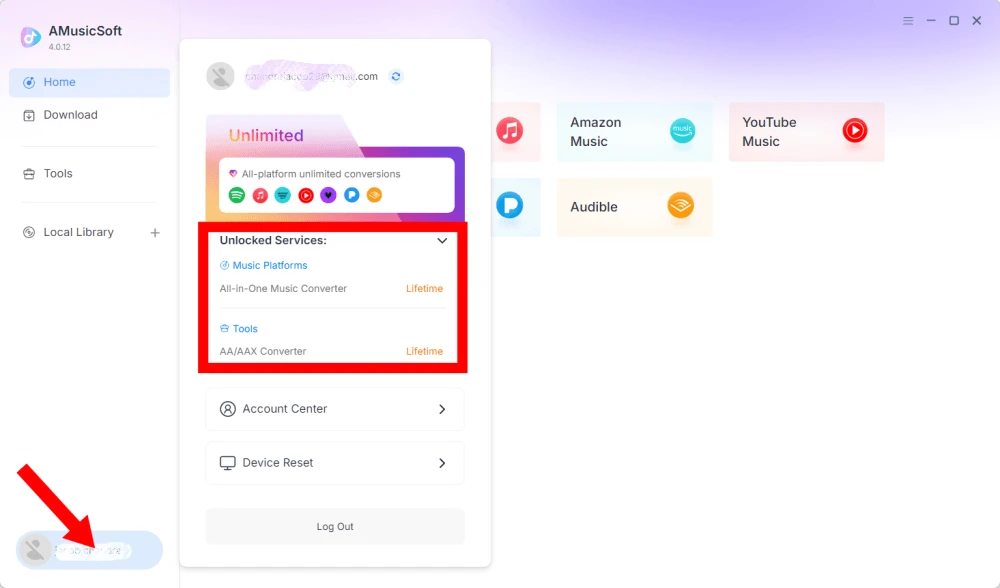
查看已解锁服务
点击左下角的个人资料图标。然后您可以查看您的帐户当前已解锁的服务和功能。
访问帐户中心
点击个人资料图标 > “帐户中心”进入 AMusicSoft 帐户中心,您可以在这里管理您的帐户和相关信息。
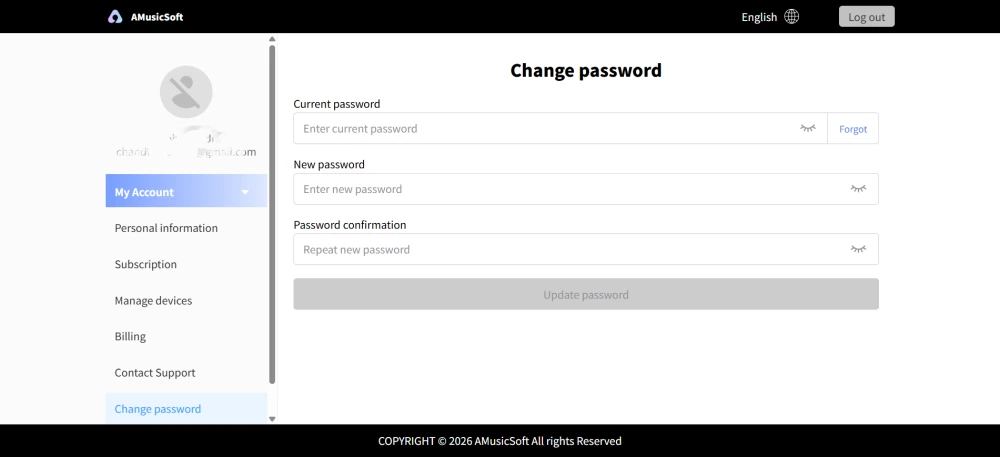
- 个人信息 - 更新您的用户名,然后点击“编辑”按钮更改您的头像照片。(请谨慎使用右下角的“删除帐户”按钮。帐户删除后,帐户及其关联的许可证密钥将立即停用。请确保您没有有效的订阅后再进行操作。)
- 订阅 - 查看和管理您当前的订阅。如果您想取消订阅,只需点击“管理订阅”暂停即可。如果您无法取消,请联系客服([email protected]).
- 管理设备 - 如果您要切换到另一台设备并希望在新设备上使用 AMusicSoft,您可以轻松完成此操作。如果您无法重置,请联系客户服务。
- 账单 - 您可以在这里查看所有订单详情。如果您无法查看账单,请联系客服。
- 更改密码 - 设置您喜欢的新密码。如果您忘记了当前密码,请点击“忘记密码”。按照屏幕上的说明重置密码。
部分6。 常见问题解答
-
AMusicSoft 的订阅服务不包含任何流媒体服务订阅。用户必须先拥有自己的流媒体服务账号才能访问和转换音乐曲目。任何歌曲、播放列表或专辑的可用性完全取决于您所使用的流媒体账号的订阅状态和地区权限。
订阅式流媒体服务(例如 Apple Music):您必须拥有与您的帐户关联的有效订阅才能访问和转换来自高级流媒体平台的内容。
免费服务:对于提供免费访问的流媒体服务(例如 Spotify),您可以使用免费帐户访问和转换可用的音乐曲目。 -
是的。您可以在“菜单”>“首选项”下预设输出格式、采样率、比特率和其他音频参数。
-
默认情况下,转换后的文件会保存在指定的输出文件夹中。您可以在“常规设置”>“输出文件夹”中更改保存位置。
-
是的。请前往“网络设置”>“同时下载”调整同时下载的数量。