So verwenden Sie den AMusicSoft Deezer Musikkonverter
Teil 1. Wie man den AMusicSoft Deezer Musikkonverter registriert
Schritt 1. Laden Sie AMusicSoft Deezer Music Converter herunter und installieren Sie ihn.
Sie können das Installationspaket von der Produktseite herunterladen oder einfach auf den hier bereitgestellten Download-Button klicken. AMusicSoft Deezer Music Converter wird derzeit auf Mac- und Windows-Geräten unterstützt.
Schritt 2. Aktivieren Sie den AMusicSoft Deezer Music Converter.
Für Nutzer der kostenlosen Testversion: Wenn Sie die kostenlose Testversion verwenden, können Sie das Programm direkt starten und die verfügbaren Funktionen erkunden. Mit der Testversion können Sie jedoch nur 3 vollständige Songs von Deezer Music konvertieren. Um mehr Titel ohne Einschränkungen zu konvertieren, müssen Sie sich registrieren und die Vollversion der Software aktivieren. (Um die AMusicSoft-Lizenz zu erwerben, besuchen Sie bitte den AMusicSoft Online-Shop . Nutzer der kostenlosen Testversion können sich auch an unseren Kundensupport wenden, um sich über aktuelle Aktionen und Sonderangebote zu informieren.)
Für zahlende Nutzer: Klicken Sie auf das Profilsymbol unten links. Wählen Sie anschließend „Mit Lizenz anmelden“. Geben Sie die E-Mail-Adresse ein, mit der Sie die Software erworben haben, sowie Ihren Registrierungscode/Lizenzschlüssel. Klicken Sie auf „Anmelden“, um die Aktivierung abzuschließen.
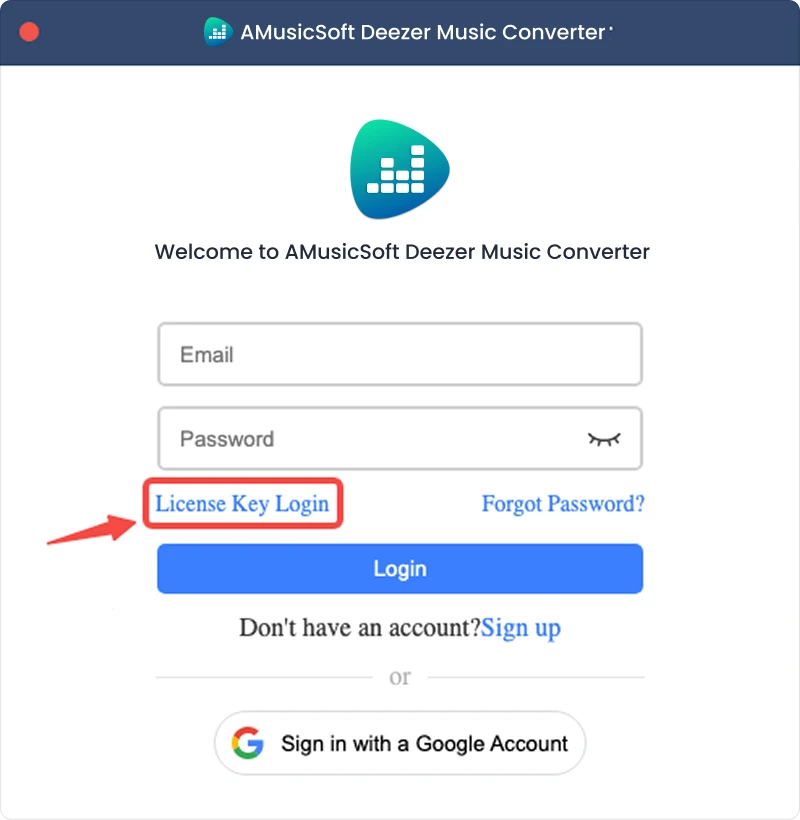
Hinweis: Bitte geben Sie dieselbe E-Mail-Adresse an, die Sie beim Kauf verwendet haben, und nutzen Sie den korrekten Registrierungscode. Zur Verifizierung ist möglicherweise eine aktive Internetverbindung erforderlich.
Teil 2. So konvertieren Sie Deezer-Musik in das gewünschte Format
Schritt 1. Deezer Music auswählen
Starten Sie AMusicSoft Deezer Music Converter. Wählen Sie in der Hauptoberfläche Deezer aus.
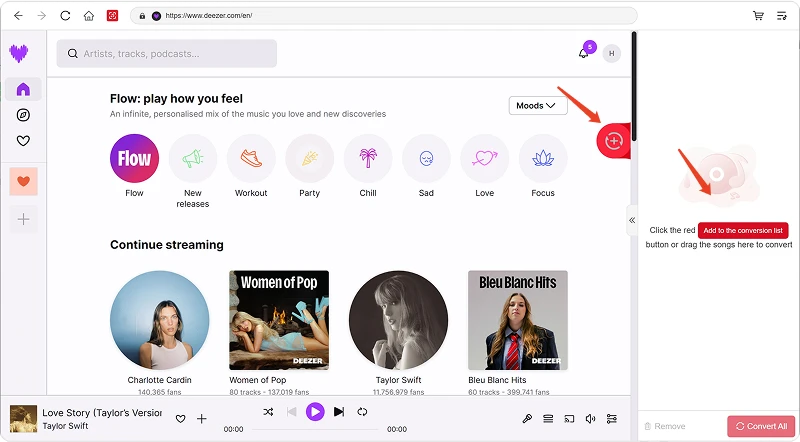
Schritt 2. Melden Sie sich bei Deezer Music an.
AMusicSoft Deezer Music Converter integriert die offiziellen Webplayer unterstützter Musikplattformen. Nach Auswahl von Deezer melden Sie sich mit Ihrem Deezer-Konto an, um Musik zu suchen und herunterzuladen.
Schritt 3. Fügen Sie dem Programm Musik hinzu
Nach dem Einloggen können Sie Ihre Musikbibliothek durchsuchen und die gewünschten Songs, Playlists, Alben oder Podcasts auswählen. Klicken Sie neben einem Titel oder einer Playlist auf „Zur Konvertierung hinzufügen“, um diese der Konvertierungsliste hinzuzufügen, oder ziehen Sie die Musik per Drag & Drop auf das schwebende „+“-Symbol.
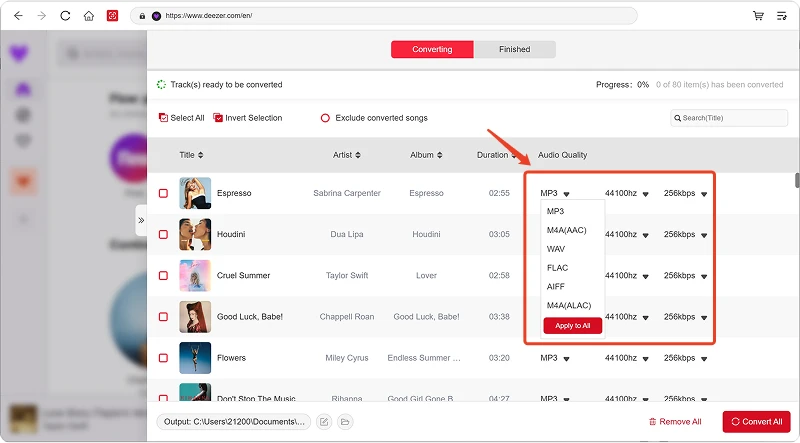
Inhaltsverfügbarkeit: Die Verfügbarkeit eines Liedes oder Albums hängt ausschließlich vom Abonnementstatus und den regionalen Berechtigungen des verwendeten Kontos ab.
Schritt 4. Wählen Sie das Ausgabeformat und passen Sie die Ausgabeeinstellungen an.
Nachdem Sie Ihre Musik hinzugefügt haben, öffnen Sie das Menü „Ausgabeformat“, um Ihr bevorzugtes Format auszuwählen. Mit dem AMusicSoft Deezer Music Converter können Sie außerdem die verfügbaren Ausgabeparameter wie Bitrate, Abtastrate usw. an Ihre Bedürfnisse anpassen. Klicken Sie abschließend auf die Option „Ausgabepfad“ oder „Ordner auswählen“ und wählen Sie den Speicherort für die Dateien. Falls Sie mit diesen Einstellungen nicht vertraut sind, können Sie die Standardkonfiguration beibehalten, um die Konvertierung zu vereinfachen.
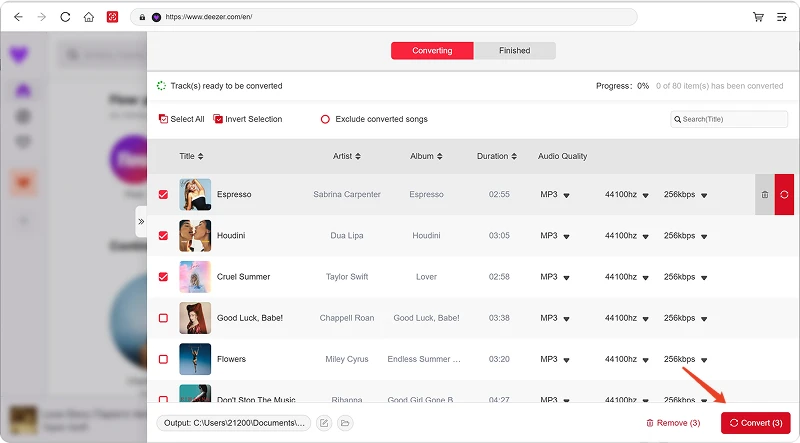
Schritt 5. Musikkonvertierung starten
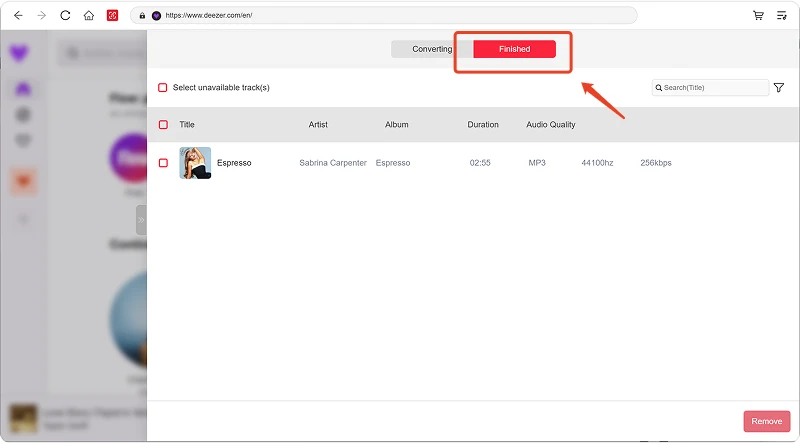
Sobald alle Einstellungen konfiguriert sind, überprüfen Sie Ihre Konvertierungsliste und klicken Sie auf die Schaltfläche „Konvertieren“. Die Software beginnt nun mit der Verarbeitung der ausgewählten Musikdateien. Die Fortschrittsanzeige ermöglicht es Ihnen, den Konvertierungsstatus zu überwachen. Für Stapelkonvertierungen können Sie mehrere Titel hinzufügen und diese gemeinsam verarbeiten, anstatt jede Datei einzeln zu konvertieren.
Schritt 6. Die konvertierte Musik finden
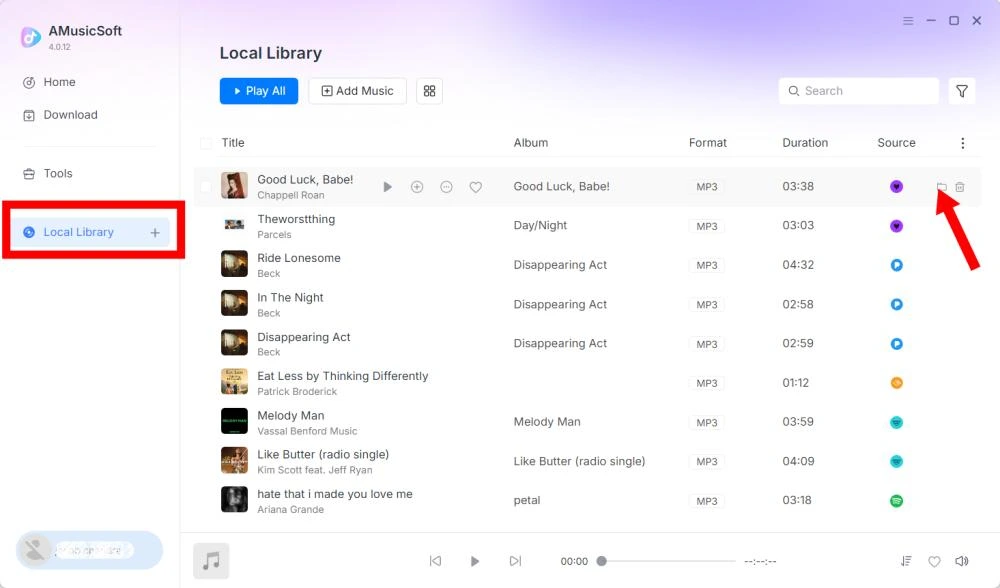
Nach Abschluss der Konvertierung öffnen Sie den ausgewählten Ausgabeordner, um auf Ihre konvertierten Dateien zuzugreifen. Anschließend können Sie die Dateien auf kompatible Geräte übertragen, in Ihrer lokalen Musikbibliothek organisieren oder mit unterstützten Mediaplayern abspielen.
Teil 3. Was soll ich tun, wenn ich keine Musik herunterladen kann?
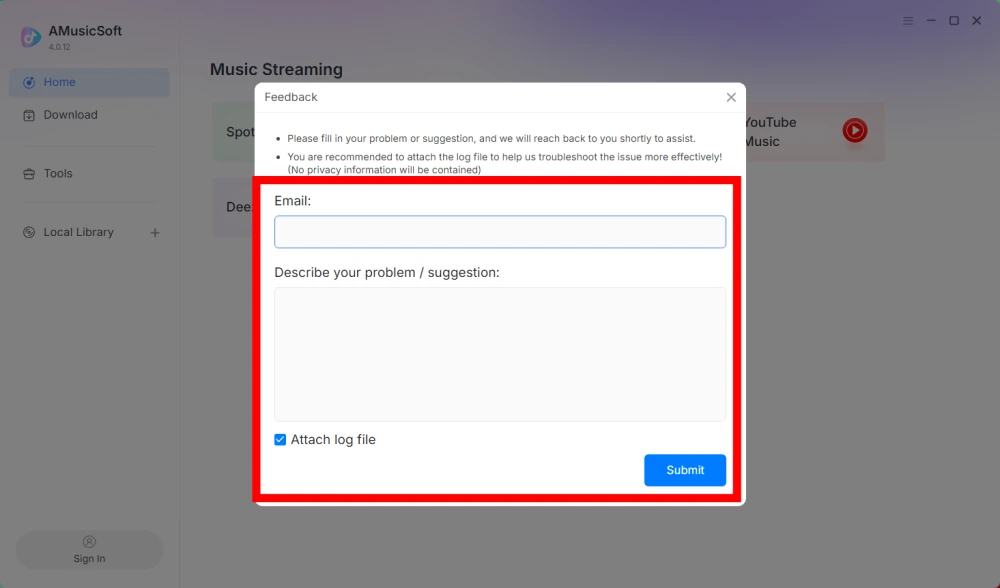
Sollten Sie beim Herunterladen oder Konvertieren von Musik auf ein Problem stoßen, senden Sie bitte das Softwareprotokoll und einen Screenshot der Fehlermeldung an unser Support-Team. Diese Informationen helfen uns, das Problem zu identifizieren und schneller eine Lösung anzubieten.
- Klicken Sie auf das Menü oben rechts im Programm und wählen Sie „Feedback senden“.
- Beschreiben Sie Ihr Problem und tragen Sie Ihren Lizenzschlüssel in das Textfeld ein.
- Bitte aktivieren Sie abschließend das Kontrollkästchen „Protokolldatei anhängen“, bevor Sie das Formular absenden.
Teil 4. So legen Sie Ausgabeeinstellungen und Audioparameter fest
Mit AMusicSoft Any Music Converter können Sie Download-Einstellungen und Audioparameter anpassen, um den Konvertierungsprozess und die Ausgabequalität zu steuern. Sie können diese Einstellungen direkt in der Konvertierungsliste vor dem Start einer Konvertierung anpassen oder unter Menü > Einstellungen Ihre bevorzugten Parameter vorab festlegen.
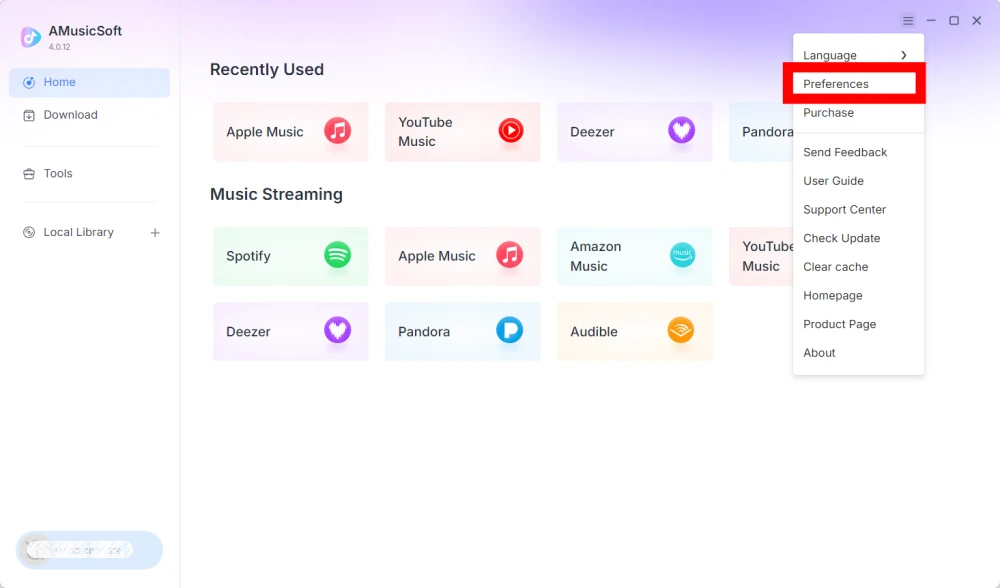
Sprache
Wählen Sie Ihre bevorzugte Sprache für die Softwareoberfläche.
Allgemeine Einstellungen
- Erscheinungsbild – Passen Sie das Erscheinungsbild der Softwareoberfläche an.
- Ausgabeverzeichnis – Wählen Sie den Ordner zum Speichern der konvertierten Dateien aus.
- Automatisches Namensmuster – Dateibenennungsformat anpassen.
- Archivieren nach – Wählen Sie aus, wie heruntergeladene Musik organisiert werden soll.
- Nach der Konvertierung – Wählen Sie aus, was nach Abschluss der Konvertierung geschehen soll.
- Musik speichern – Speichern konvertierter Musikdateien aktivieren oder deaktivieren.
- Songtexte – Speichern von Songtexten zusammen mit der Musik aktivieren oder deaktivieren.
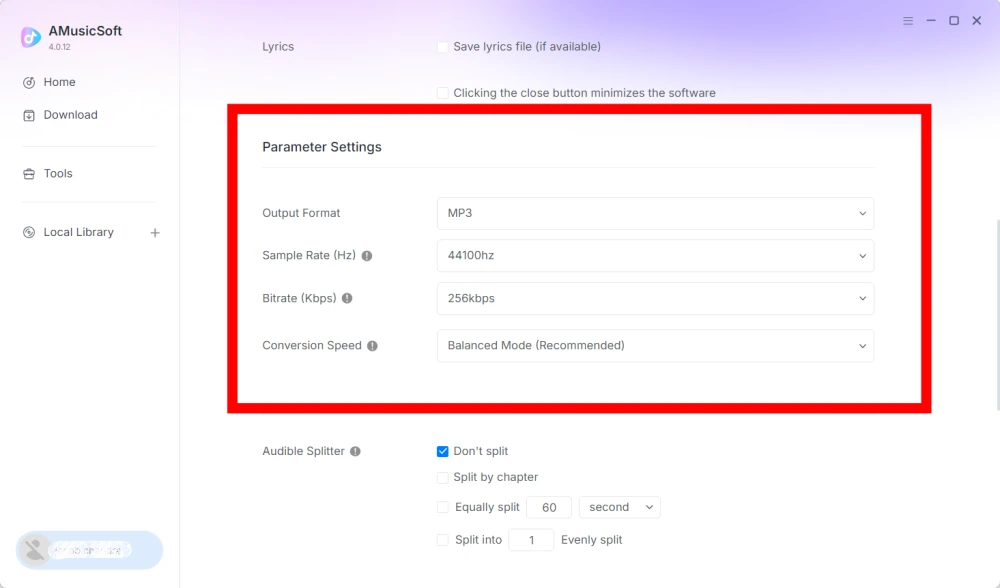
Parametereinstellungen
- Ausgabeformat - Wählen Sie das gewünschte Audioausgabeformat.
- Abtastrate (Hz) – Hier die Audio-Abtastrate einstellen. (Bereich: 22050 Hz bis 48000 Hz.)
- Bitrate (Kbps) – Stellen Sie die Audio-Bitrate ein, um die Ausgabequalität zu steuern. (Bereich: 128 Kbps bis 320 Kbps.)
- Konversionsgeschwindigkeit - Passen Sie die Konversionsgeschwindigkeit Ihren Bedürfnissen an.
- Audible Splitter – Audible-Hörbücher in kleinere Abschnitte aufteilen.
Wiedergabeeinstellungen
Überblenden von Liedern – Ermöglicht einen sanften Übergang zwischen den Liedern während der Wiedergabe.
Netzwerkeinstellungen
- Gleichzeitige Downloads - Legen Sie die Anzahl der gleichzeitig herunterzuladenden Musikdateien fest.
- Proxy – Konfigurieren Sie die Proxy-Einstellungen für Netzwerkverbindungen.
Andere Einstellungen
Pop-ups – Pop-up-Benachrichtigungen aktivieren oder deaktivieren.
Teil 5. So verwalten Sie Ihr AMusicSoft-Konto
Im Account Center können Sie Ihre AMusicSoft-Konto- und Abonnementinformationen verwalten.
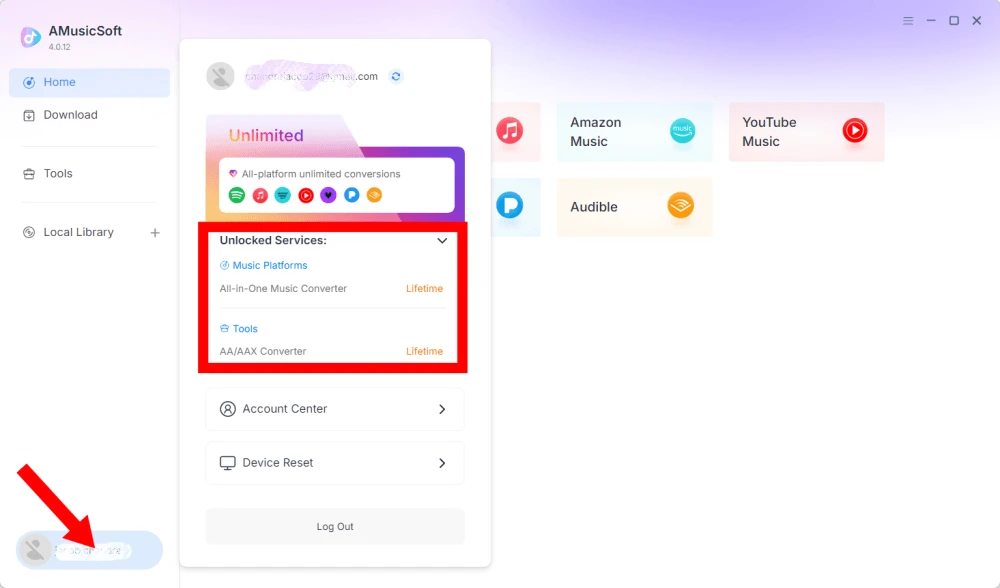
Freigeschaltete Dienste anzeigen
Klicken Sie auf das Profilsymbol unten links. Anschließend können Sie die Dienste und Funktionen überprüfen, die derzeit für Ihr Konto freigeschaltet sind.
Zugriff auf das Kontozentrum
Klicken Sie auf das Profilsymbol > „Kontocenter“, um zum AMusicSoft-Kontocenter zu gelangen, wo Sie Ihr Konto und zugehörige Informationen verwalten können.
- Persönliche Informationen – Aktualisieren Sie Ihren Benutzernamen und klicken Sie auf „Bearbeiten“, um Ihr Avatarbild zu ändern. (Gehen Sie mit Vorsicht mit der Schaltfläche „Konto löschen“ unten rechts um. Nach der Löschung Ihres Kontos werden dieses und der zugehörige Lizenzschlüssel sofort deaktiviert. Stellen Sie sicher, dass Sie kein aktives Abonnement haben, bevor Sie fortfahren.)
- Abonnement – Sehen Sie Ihre aktuellen Abonnements an und verwalten Sie sie. Wenn Sie ein Abonnement kündigen möchten, klicken Sie einfach auf „Abonnement verwalten“, um es zu pausieren. Falls Sie nicht kündigen können, wenden Sie sich bitte an den Kundenservice ([E-Mail geschützt] ).
- Geräteverwaltung – Wenn Sie zu einem anderen Gerät wechseln und AMusicSoft auf dem neuen Gerät verwenden möchten, können Sie dies problemlos erledigen. Sollten Sie Probleme beim Zurücksetzen haben, wenden Sie sich bitte an den Kundendienst.
- Rechnung – Alle Bestelldetails sind hier einsehbar. Sollten Sie die Rechnung nicht einsehen können, kontaktieren Sie bitte unseren Kundenservice.
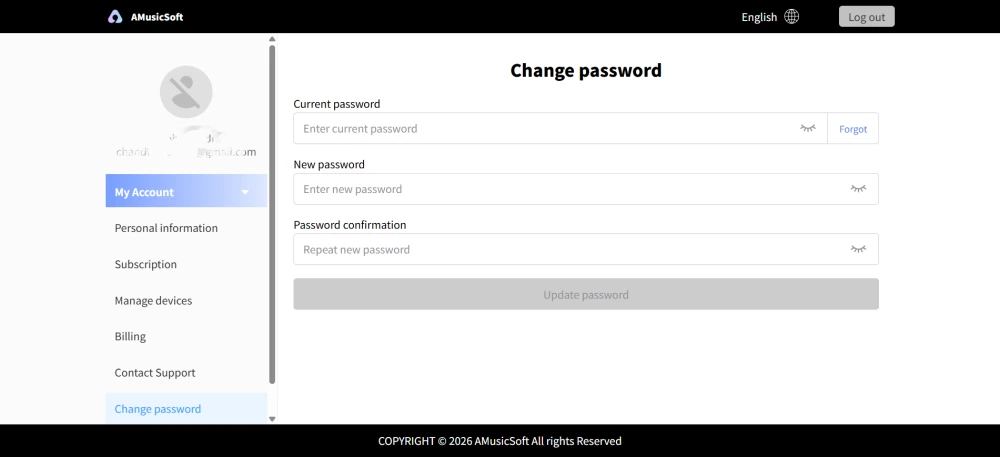
- Passwort ändern – Legen Sie ein neues Passwort fest. Wenn Sie Ihr aktuelles Passwort vergessen haben, klicken Sie auf „Passwort vergessen“. Folgen Sie den Anweisungen auf dem Bildschirm, um Ihr Passwort zurückzusetzen.
Teil 6. FAQ
-
Die Abonnements von AMusicSoft beinhalten keine Streaming-Abonnements. Um Musiktitel abzurufen und zu konvertieren, benötigen Nutzer ein eigenes Streaming-Konto. Die Verfügbarkeit von Titeln, Playlists oder Alben hängt ausschließlich vom Abonnementstatus und den regionalen Berechtigungen des verwendeten Streaming-Kontos ab.
Abonnementbasierte Streaming-Dienste (z. B. Apple Music): Sie benötigen ein aktives Abonnement, das mit Ihrem Konto verknüpft ist, um auf Inhalte von Premium-Streaming-Plattformen zuzugreifen und diese zu konvertieren.
Kostenlose Dienste: Bei Streaming-Diensten, die kostenlosen Zugriff anbieten (z. B. Spotify), können Sie mit einem kostenlosen Konto auf die verfügbaren Musiktitel zugreifen und diese konvertieren. -
Ja. Sie können das Ausgabeformat, die Abtastrate, die Bitrate und andere Audioparameter unter Menü > Einstellungen voreinstellen.
-
Standardmäßig werden konvertierte Dateien im festgelegten Ausgabeverzeichnis gespeichert. Sie können den Speicherort unter Allgemeine Einstellungen > Ausgabeverzeichnis ändern.
-
Ja. Gehen Sie zu Netzwerkeinstellungen > Gleichzeitige Downloads, um die Anzahl der gleichzeitigen Downloads anzupassen.