Cómo usar AMusicSoft Pandora Music Converter
Parte 1. Cómo registrar AMusicSoft Pandora Music Converter
Paso 1. Descargue e instale AMusicSoft Pandora Music Converter
Puede descargar el paquete de instalación desde la página del producto o simplemente haciendo clic en el botón de descarga que aparece aquí. AMusicSoft Pandora Music Converter es compatible actualmente con dispositivos Mac y Windows.
Paso 2. Activar AMusicSoft Pandora Music Converter
Para usuarios de la versión de prueba gratuita: Si utiliza la versión de prueba gratuita, puede iniciar el programa directamente y explorar sus funciones. Con la versión de prueba gratuita, solo puede convertir 3 canciones completas de Pandora Music. Para convertir más pistas sin limitaciones, deberá registrarse y activar la versión completa del software. (Para comprar la licencia de AMusicSoft, visite la tienda en línea de AMusicSoft . Los usuarios de la versión de prueba gratuita también pueden contactar con nuestro equipo de atención al cliente para conocer las últimas promociones y ofertas especiales).
Para usuarios de pago: Haga clic en el icono de perfil en la esquina inferior izquierda. A continuación, seleccione «Iniciar sesión con licencia». Introduzca la dirección de correo electrónico con la que adquirió el software y su código de registro/clave de licencia. Haga clic en «Iniciar sesión» para completar la activación.
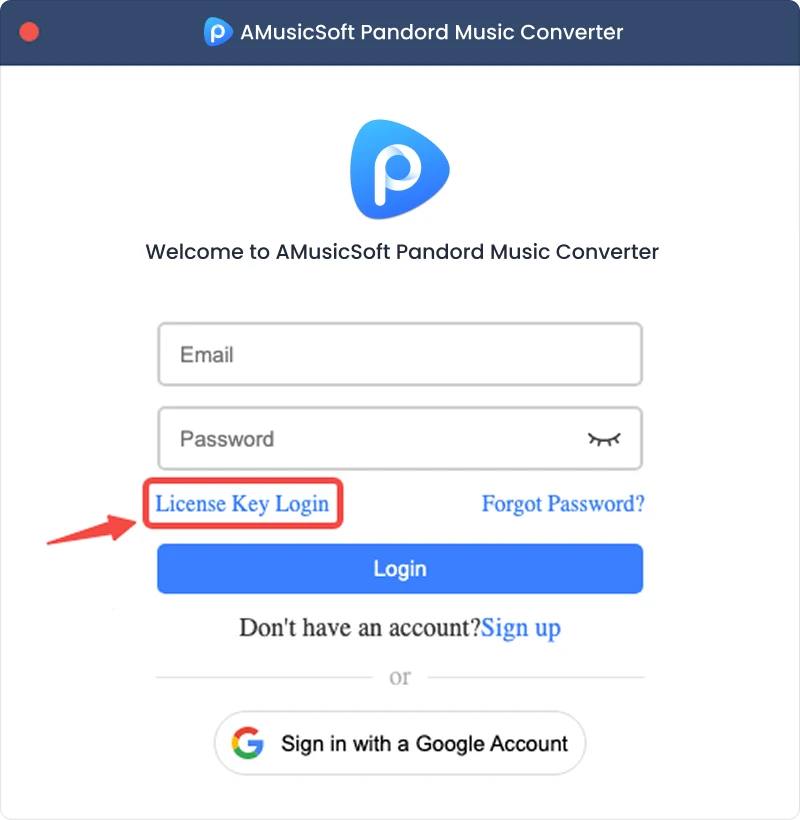
Nota: Asegúrese de ingresar la misma dirección de correo electrónico asociada con su compra y utilice el código de registro correcto. Es posible que se requiera una conexión a Internet activa para la verificación.
Parte 2. Cómo convertir la música de Pandora al formato que prefieras
Paso 1. Seleccione Pandora Music
Inicie AMusicSoft Pandora Music Converter. En la interfaz principal, seleccione Pandora Music.
Paso 2. Inicia sesión en Pandora Music
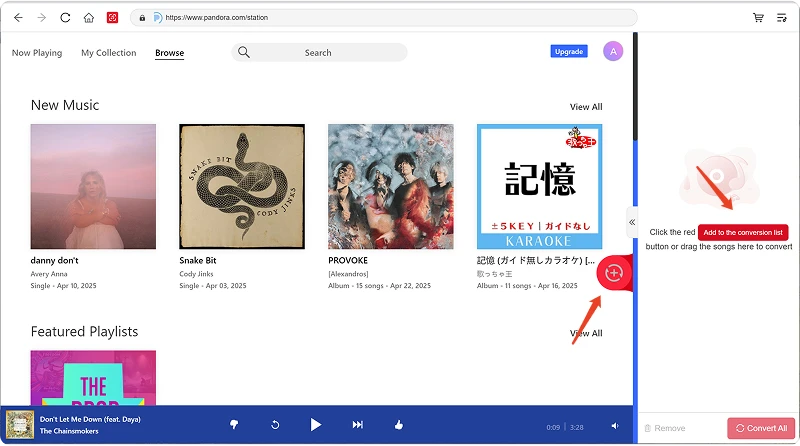
AMusicSoft Pandora Music Converter integra los reproductores web oficiales de las plataformas de música compatibles. Tras seleccionar Pandora Music, inicia sesión con tu cuenta de Pandora Music para buscar y descargar música.
Paso 3. Agregue música al programa
Tras iniciar sesión, explora tu biblioteca musical y selecciona las canciones, listas de reproducción, álbumes o podcasts que desees. Haz clic en «Añadir a la conversión» junto a una pista o lista de reproducción para añadirla a la lista de conversión, o arrastra y suelta la música sobre el icono flotante «+».
Disponibilidad del contenido: La disponibilidad de cualquier canción o álbum depende totalmente del estado de la suscripción y de los permisos regionales de la cuenta que utilice.
Paso 4. Seleccione el formato de salida y personalice la configuración de salida.
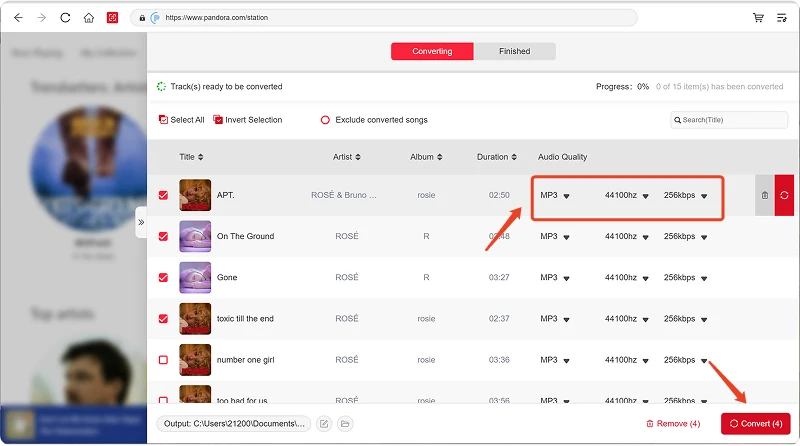
Tras añadir tu música, abre el menú Formato de salida para elegir el formato que prefieras. AMusicSoft Pandora Music Converter también te permite ajustar los parámetros de salida disponibles según tus necesidades, como la tasa de bits, la frecuencia de muestreo, entre otros. Por último, haz clic en la opción Ruta de salida o Selección de carpeta y elige dónde quieres guardar los archivos. Si no estás familiarizado con estos ajustes, puedes mantener la configuración predeterminada para un proceso de conversión más sencillo.
Paso 5. Comienza a convertir la música.
Una vez configurados todos los ajustes, revise su lista de conversión y haga clic en el botón Convertir. El software comenzará a procesar los archivos de música seleccionados. La información de progreso le permite supervisar el estado de la conversión. Para conversiones por lotes, puede agregar varias canciones y procesarlas juntas en lugar de convertir cada archivo individualmente.
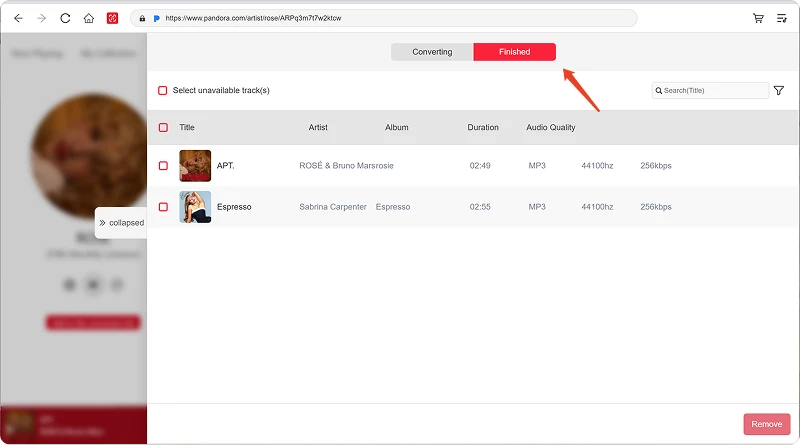
Paso 6. Encuentra la música convertida.
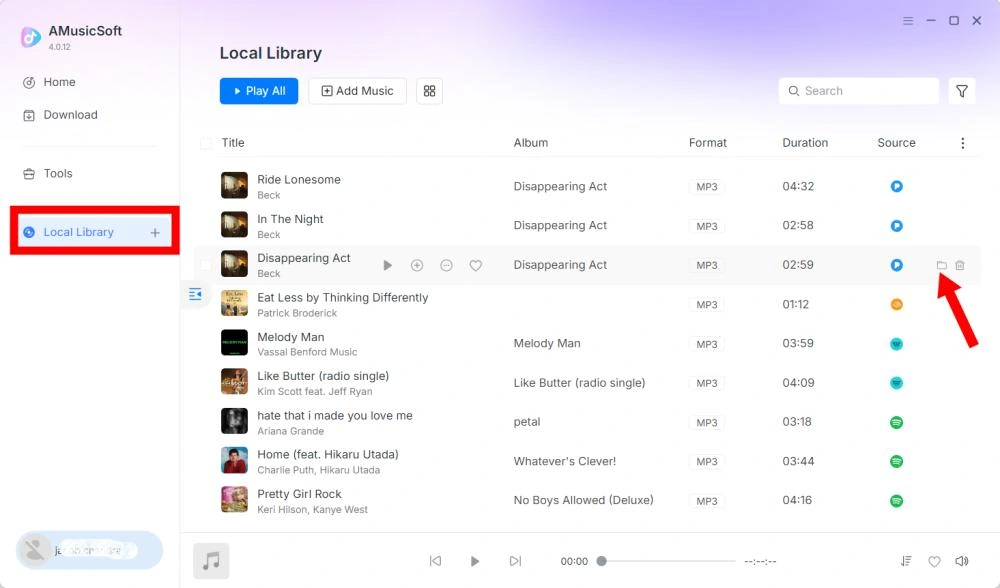
Una vez finalizada la conversión, abre la carpeta de salida seleccionada para acceder a los archivos convertidos. A continuación, puedes transferirlos a dispositivos compatibles, organizarlos en tu biblioteca musical local o reproducirlos con reproductores multimedia compatibles.
Parte 3. ¿Qué debo hacer si no puedo descargar música?
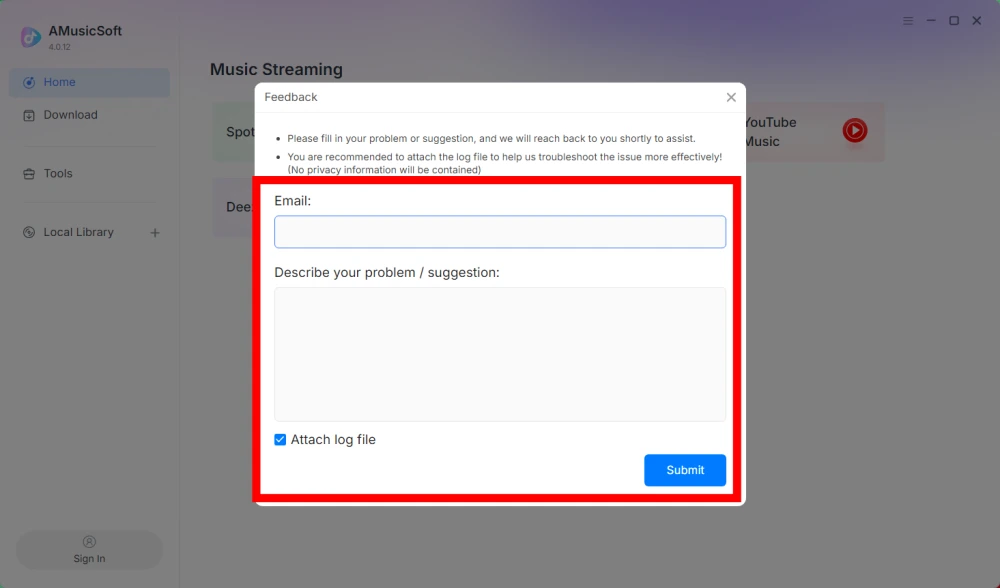
Si experimenta algún problema al descargar o convertir música, envíe el registro del software y una captura de pantalla del error a nuestro equipo de soporte. Esta información nos ayudará a identificar el problema y a ofrecerle una solución con mayor rapidez.
- Haz clic en el menú situado en la parte superior derecha del programa y selecciona "Enviar comentarios".
- Describe tu problema y escribe tu clave de licencia en el cuadro de texto.
- Por último, marque la casilla "Adjuntar el archivo de registro" antes de enviar el formulario.
Parte 4. Cómo preconfigurar los ajustes de salida y los parámetros de audio
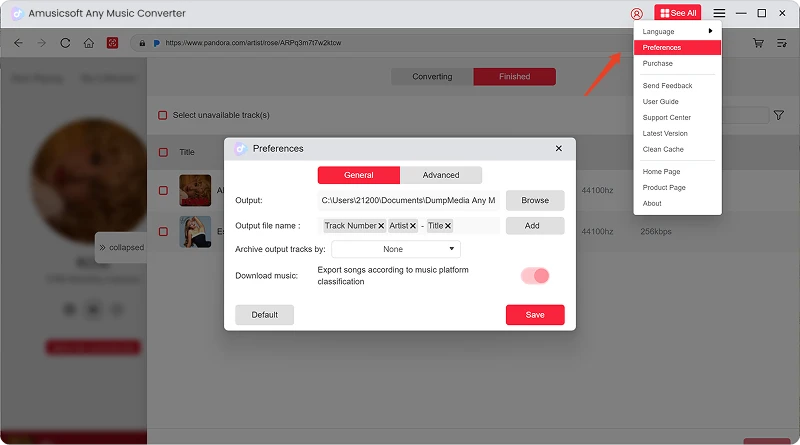
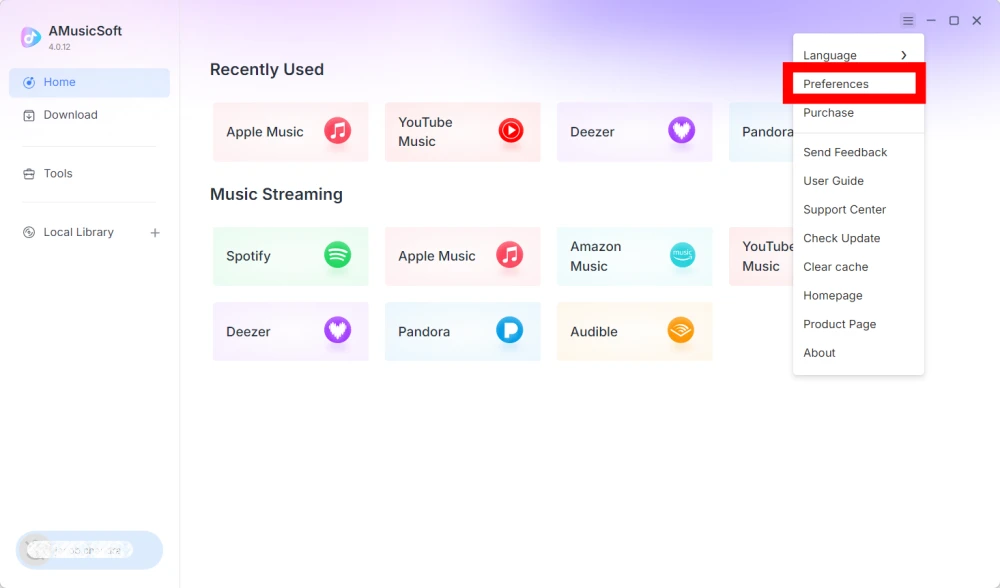
AMusicSoft Any Music Converter te permite personalizar la configuración de descarga y los parámetros de audio para controlar el proceso de conversión y la calidad de salida. Puedes ajustar estos parámetros directamente desde la lista de conversión antes de iniciarla, o ir a Menú > Preferencias para preconfigurar tus parámetros preferidos con antelación.
Idioma
Seleccione su idioma preferido para la interfaz del software.
Ajustes generales
- Apariencia: personaliza la apariencia de la interfaz del software.
- Carpeta de salida: seleccione la carpeta donde se guardarán los archivos convertidos.
- Patrón de nomenclatura automática: personaliza el formato de nomenclatura de archivos.
- Archivar por: elige cómo organizar la música descargada.
- Después de la conversión: elige qué sucede una vez que se completa la conversión.
- Guardar música: permite activar o desactivar la función de guardar archivos de música convertidos.
- Letras: Activa o desactiva la opción de guardar las letras de las canciones.
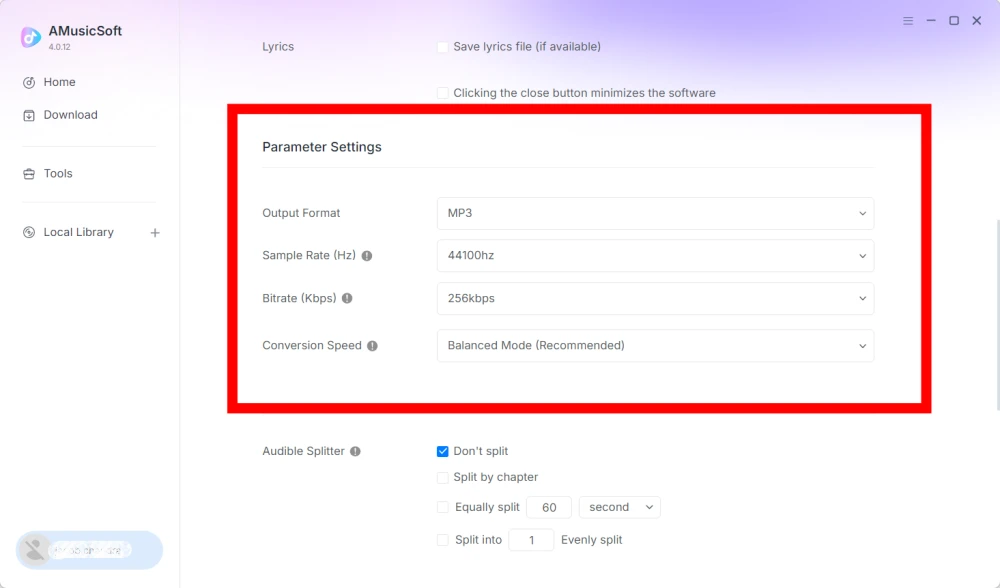
Configuraciones de Parámetros
- Formato de salida: seleccione el formato de salida de audio deseado.
- Frecuencia de muestreo (Hz): configure la frecuencia de muestreo de audio. (Rango de 22050 Hz a 48000 Hz).
- Tasa de bits (Kbps): configure la tasa de bits de audio para controlar la calidad de salida. (Rango de 128 Kbps a 320 Kbps).
- Velocidad de conversión: ajuste la velocidad de conversión según sus necesidades.
- Audible Splitter: divide los audiolibros de Audible en secciones más pequeñas.
Configuración de reproducción
Transición gradual entre canciones: permite una transición fluida entre canciones durante la reproducción.
Configuración de red
- Descargas simultáneas: configure la cantidad de archivos de música que se descargarán simultáneamente.
- Proxy: configure los ajustes de proxy para las conexiones de red.
Otros ajustes
Ventanas emergentes: active o desactive las notificaciones emergentes.
Parte 5. Cómo administrar su cuenta de AMusicSoft
Puedes gestionar la información de tu cuenta y suscripción a AMusicSoft desde el centro de cuentas.
Ver servicios desbloqueados
Haz clic en el icono de perfil en la esquina inferior izquierda. Allí podrás consultar los servicios y funciones que tienes desbloqueados en tu cuenta.
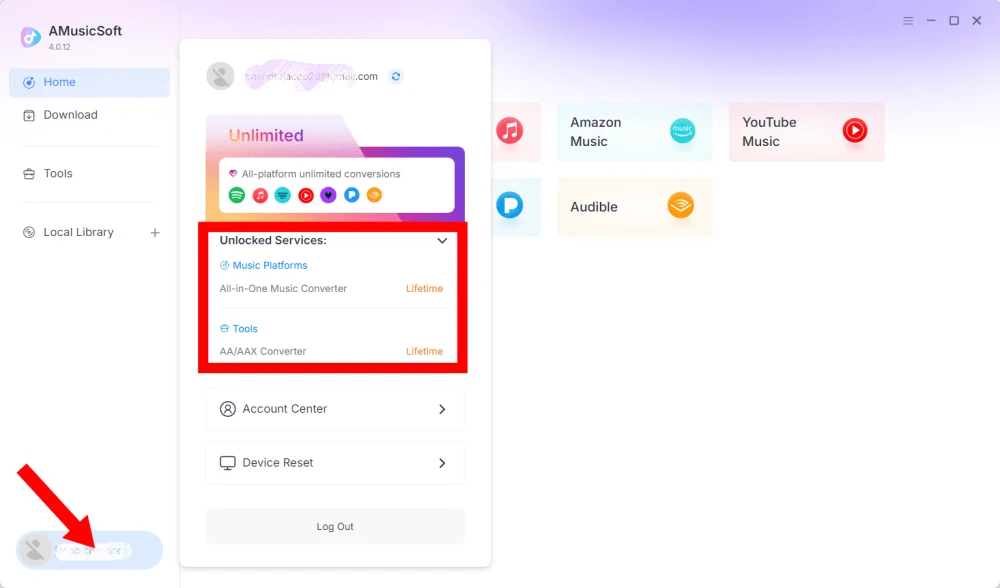
Centro de acceso a la cuenta
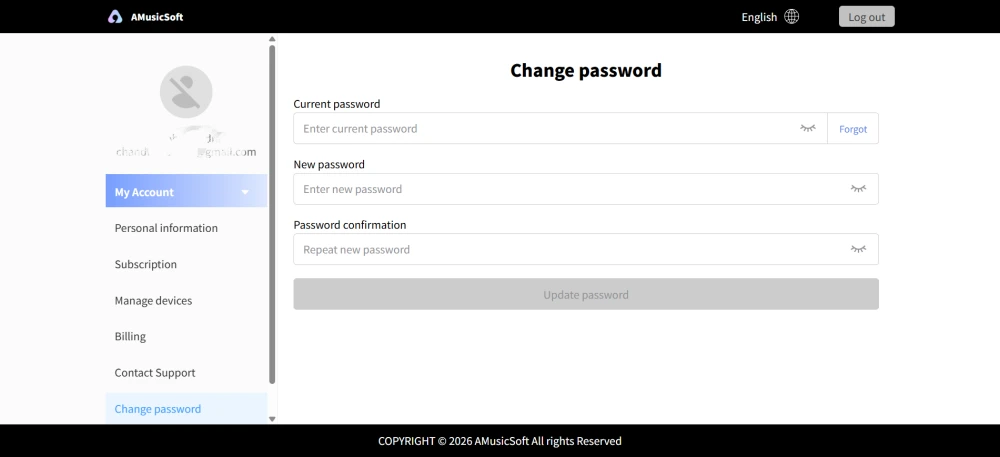
Haz clic en el icono de perfil > "Centro de cuentas" para acceder al Centro de cuentas de AMusicSoft, donde podrás gestionar tu cuenta y la información relacionada.
- Información personal: actualiza tu nombre de usuario y haz clic en "editar" para cambiar tu foto de perfil. (Usa el botón "Eliminar cuenta" en la esquina inferior derecha con precaución. Una vez eliminada tu cuenta, tanto la cuenta como la clave de licencia asociada se desactivarán inmediatamente. Asegúrate de no tener ninguna suscripción activa antes de continuar).
- Suscripción: vea y gestione sus suscripciones actuales. Si desea cancelar una suscripción, simplemente haga clic en "Gestionar suscripción" para pausarla. Si no puede cancelarla, póngase en contacto con el servicio de atención al cliente ([email protected]).
- Administrar dispositivos: Si va a cambiar a otro dispositivo y desea usar AMusicSoft en el nuevo, puede hacerlo fácilmente. Si no puede restablecerlo, póngase en contacto con el servicio de atención al cliente.
- Facturación: Aquí encontrará todos los detalles de su pedido. Si no puede consultar la factura, póngase en contacto con el servicio de atención al cliente.
- Cambiar contraseña: Establezca la nueva contraseña que desee. Si olvidó su contraseña actual, haga clic en "Olvidé mi contraseña". Siga las instrucciones en pantalla para restablecerla.
Parte 6. Preguntas Frecuentes
-
Las suscripciones de AMusicSoft no incluyen suscripciones a servicios de streaming. Para acceder a las pistas de música y convertirlas, los usuarios deben tener sus propias cuentas de servicios de streaming. La disponibilidad de cualquier canción, lista de reproducción o álbum depende exclusivamente del estado de la suscripción y de los permisos regionales de la cuenta de streaming que utilice.
Servicios de streaming por suscripción (por ejemplo, Apple Music): Debes tener una suscripción activa vinculada a tu cuenta para acceder y reproducir contenido de plataformas de streaming premium.
Servicios gratuitos: En el caso de los servicios de streaming que ofrecen acceso gratuito (por ejemplo, Spotify), puedes usar una cuenta gratuita para acceder a las pistas de música disponibles y convertirlas. -
Sí. Puedes preconfigurar el formato de salida, la frecuencia de muestreo, la tasa de bits y otros parámetros de audio en Menú > Preferencias.
-
Por defecto, los archivos convertidos se guardan en la carpeta de salida designada. Puede cambiar la ubicación en Configuración general > Carpeta de salida.
-
Sí. Ve a Configuración de red > Descargas simultáneas para ajustar el número de descargas simultáneas.