Como usar o conversor de música AMusicSoft Deezer
Part 1. Como registrar o AMusicSoft Deezer Music Converter
Passo 1. Baixe e instale o AMusicSoft Deezer Music Converter.
Você pode baixar o pacote de instalação na página do produto ou simplesmente clicando no botão de download fornecido aqui. O AMusicSoft Deezer Music Converter é compatível com dispositivos Mac e Windows.
Passo 2. Ative o conversor de música AMusicSoft Deezer.
Para usuários da versão de avaliação gratuita: Se você estiver usando a versão de avaliação gratuita, pode iniciar o programa diretamente e explorar os recursos disponíveis. Com a versão de avaliação gratuita, você só pode converter 3 músicas completas do Deezer Music. Para converter mais faixas sem limitações, você precisará se registrar e ativar a versão completa do software. (Para comprar a licença do AMusicSoft, acesse a Loja Online do AMusicSoft . Usuários da versão de avaliação gratuita também podem entrar em contato com nossa equipe de suporte ao cliente para saber mais sobre as últimas promoções e ofertas especiais.)
Para usuários pagos: Clique no ícone de perfil no canto inferior esquerdo. Em seguida, selecione "Entrar com a licença". Insira o endereço de e-mail usado para comprar o software e seu código de registro/chave de licença. Clique em "Entrar" para concluir a ativação.
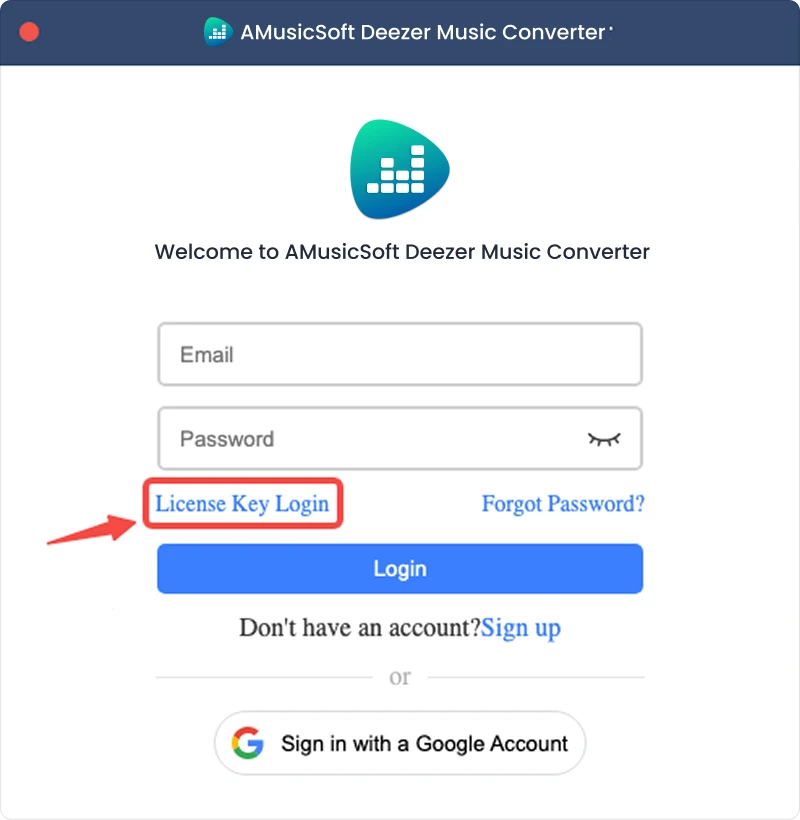
Observação: Certifique-se de inserir o mesmo endereço de e-mail associado à sua compra e usar o código de registro correto. Uma conexão ativa com a internet pode ser necessária para a verificação.
Part 2. Como converter músicas do Deezer para o formato desejado
Passo 1. Selecione Deezer Music
Inicie o AMusicSoft Deezer Music Converter. Na interface principal, selecione Deezer.
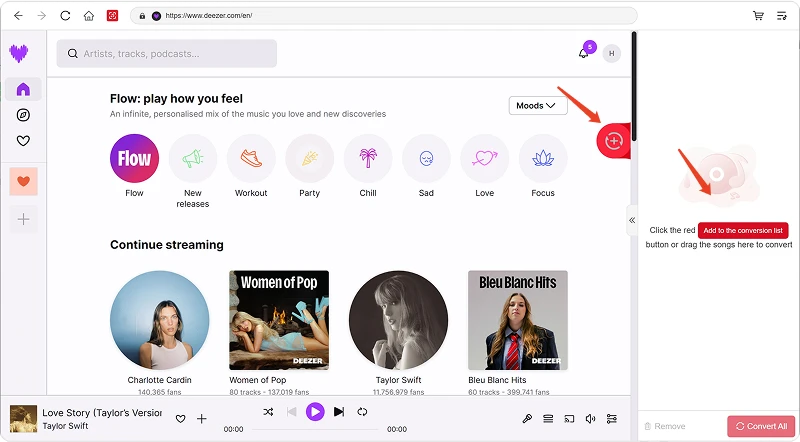
Passo 2. Faça login no Deezer Music.
O AMusicSoft Deezer Music Converter integra os reprodutores web oficiais das plataformas de música compatíveis. Após selecionar o Deezer, faça login com sua conta Deezer para buscar e baixar músicas.
Etapa 3. Adicionar música ao programa
Após fazer login, navegue pela sua biblioteca de músicas e selecione as músicas, playlists, álbuns ou podcasts que deseja converter. Clique em "Adicionar à conversão" ao lado de uma faixa ou playlist para adicioná-la à lista de conversão ou arraste e solte a música no ícone flutuante "+".
Disponibilidade do conteúdo: A disponibilidade de qualquer música ou álbum depende inteiramente do status da assinatura e das permissões regionais da conta que você utiliza.
Passo 4. Selecione o formato de saída e personalize as configurações de saída.
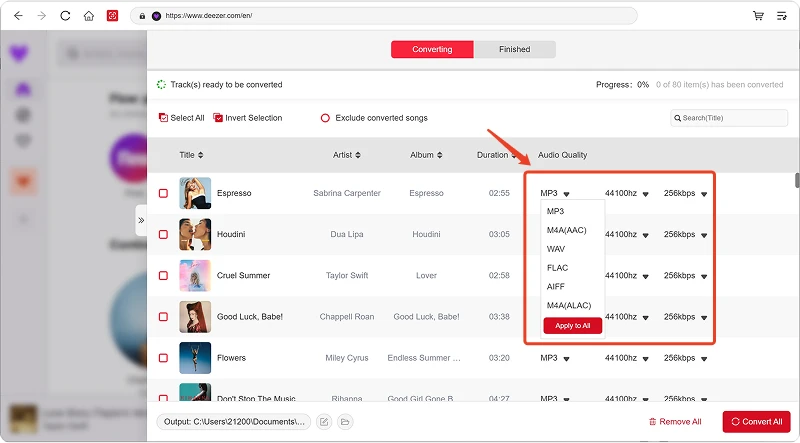
Após adicionar suas músicas, abra o menu Formato de Saída para escolher o formato desejado. O AMusicSoft Deezer Music Converter também permite ajustar os parâmetros de saída disponíveis de acordo com suas necessidades, como taxa de bits, taxa de amostragem e outros. Por fim, clique na opção de caminho ou pasta de saída e escolha onde deseja salvar os arquivos. Se não estiver familiarizado com essas configurações, você pode manter a configuração padrão para um processo de conversão mais simples.
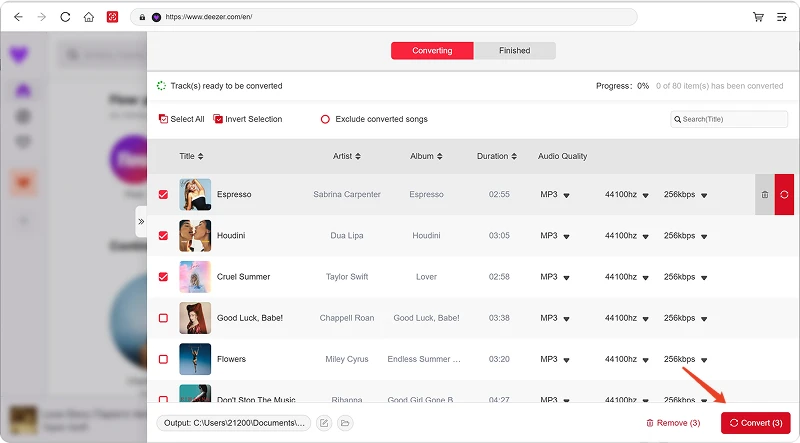
Passo 5. Comece a converter músicas
Após configurar todas as opções, revise sua lista de conversão e clique no botão Converter. O software começará a processar os arquivos de música selecionados. As informações de progresso permitem que você monitore o status da conversão. Para conversões em lote, você pode adicionar várias músicas e processá-las juntas, em vez de converter cada arquivo individualmente.
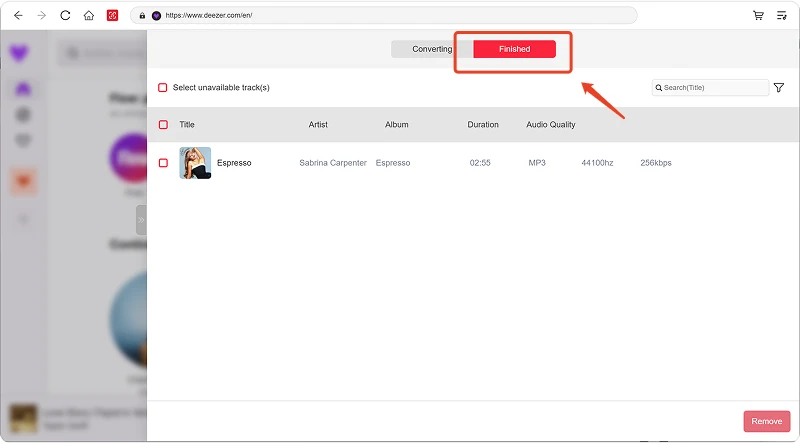
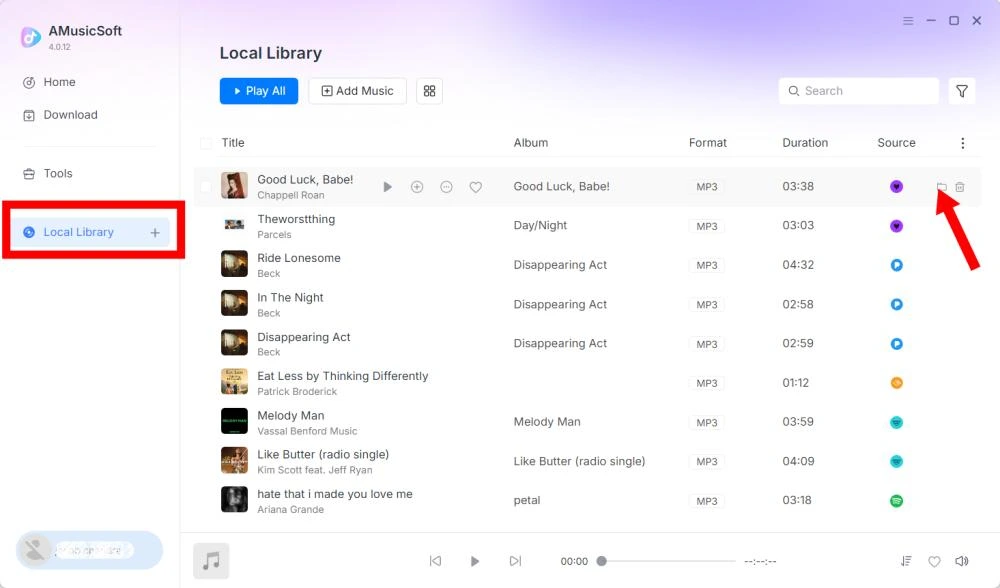
Passo 6. Encontre a música convertida
Quando a conversão estiver concluída, abra a pasta de saída selecionada para acessar os arquivos convertidos. Em seguida, você poderá transferir os arquivos para dispositivos compatíveis, organizá-los em sua biblioteca de música local ou reproduzi-los em reprodutores de mídia compatíveis.
Part 3. O que devo fazer se não conseguir baixar músicas?
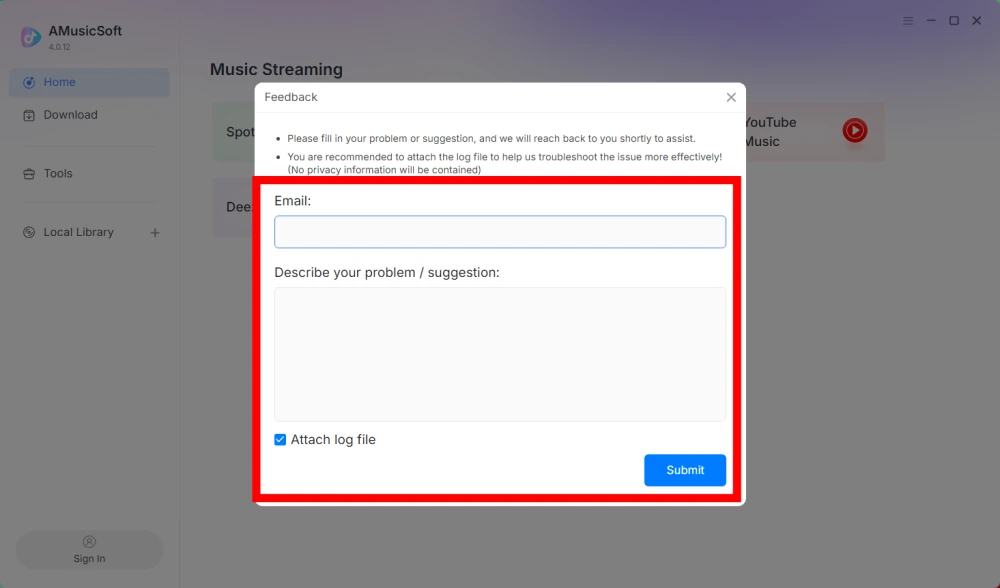
Se você encontrar algum problema ao baixar ou converter músicas, envie o registro do software e uma captura de tela do erro para nossa equipe de suporte. Essas informações nos ajudarão a identificar o problema e fornecer uma solução mais rapidamente.
- Clique no menu no canto superior direito do programa e escolha "Enviar feedback".
- Descreva o seu problema e anote a sua chave de licença na caixa de texto.
- Por fim, marque a caixa "Anexar o arquivo de registro" antes de enviar.
Part 4. Como pré-configurar as definições de saída e os parâmetros de áudio
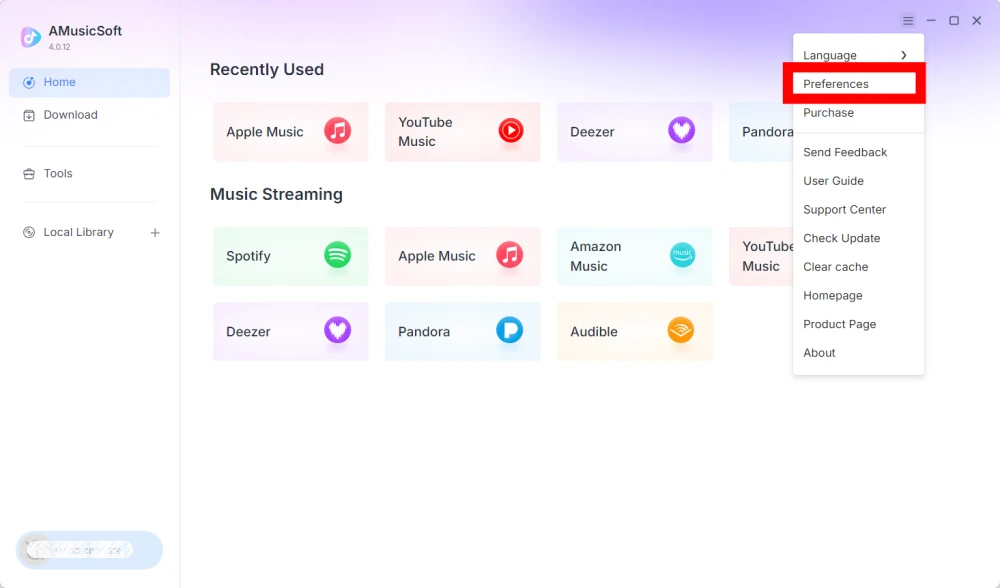
O AMusicSoft Any Music Converter permite personalizar as configurações de download e os parâmetros de áudio para controlar o processo de conversão e a qualidade de saída. Você pode ajustar essas configurações diretamente na lista de conversão antes de iniciar uma conversão ou acessar Menu > Preferências para predefinir seus parâmetros preferidos com antecedência.
Língua
Selecione o idioma de sua preferência para a interface do software.
Configurações gerais
- Aparência - Personalize a aparência da interface do software.
- Pasta de saída - Selecione a pasta onde deseja salvar os arquivos convertidos.
- Padrão de nomenclatura automática - Personalize o formato de nomenclatura dos arquivos.
- Arquivar por - Escolha como organizar as músicas baixadas.
- Após a conversão - Escolha o que acontecerá depois que a conversão for concluída.
- Salvar música - Ative ou desative o salvamento de arquivos de música convertidos.
- Letras - Ative ou desative o salvamento das letras com a música.
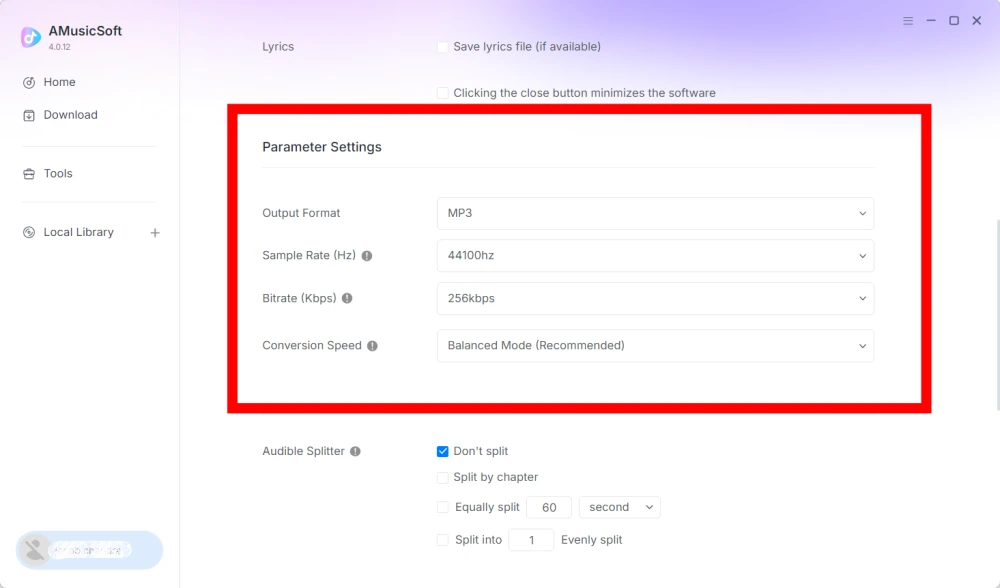
Configurações de Parâmetros
- Formato de saída - Selecione o formato de saída de áudio desejado.
- Taxa de amostragem (Hz) - Defina a taxa de amostragem de áudio. (Intervalo de 22050 Hz a 48000 Hz.)
- Taxa de bits (Kbps) - Defina a taxa de bits do áudio para controlar a qualidade da saída. (Intervalo de 128 Kbps a 320 Kbps.)
- Velocidade de conversão - Ajuste a velocidade de conversão de acordo com suas necessidades.
- Audible Splitter - Divida audiolivros do Audible em seções menores.
Configurações de reprodução
Transição suave entre músicas - Permite uma transição suave entre as músicas durante a reprodução.
Configurações da rede
- Downloads simultâneos - Defina o número de arquivos de música a serem baixados simultaneamente.
- Proxy - Configure as definições de proxy para conexões de rede.
Outras configurações
Pop-ups - Ative ou desative as notificações pop-up.
Part 5. Como gerenciar sua conta AMusicSoft
Você pode gerenciar sua conta AMusicSoft e as informações de assinatura na central de contas.
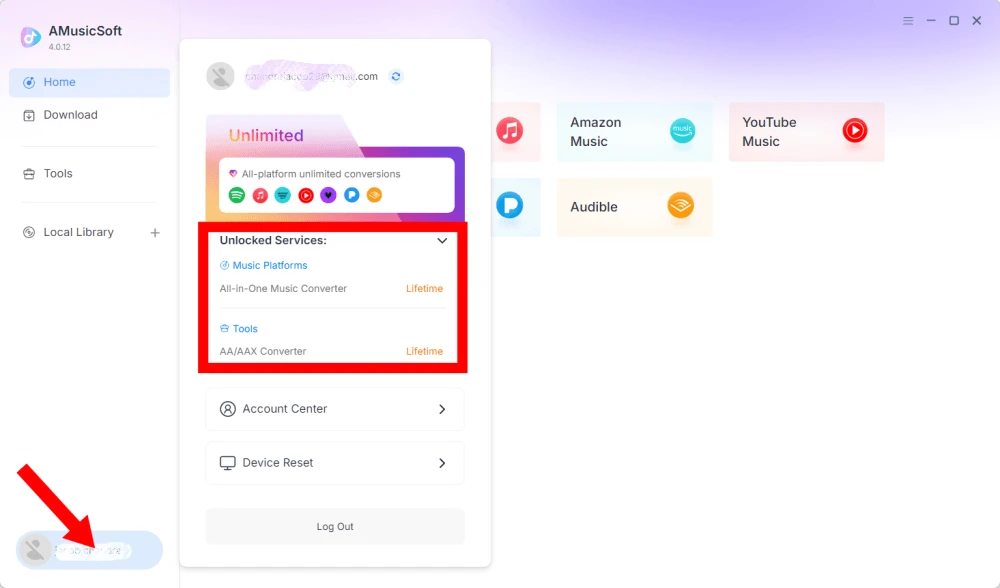
Veja os serviços desbloqueados
Clique no ícone de perfil no canto inferior esquerdo. Em seguida, você poderá verificar os serviços e recursos atualmente desbloqueados em sua conta.
Acesse a Central de Contas
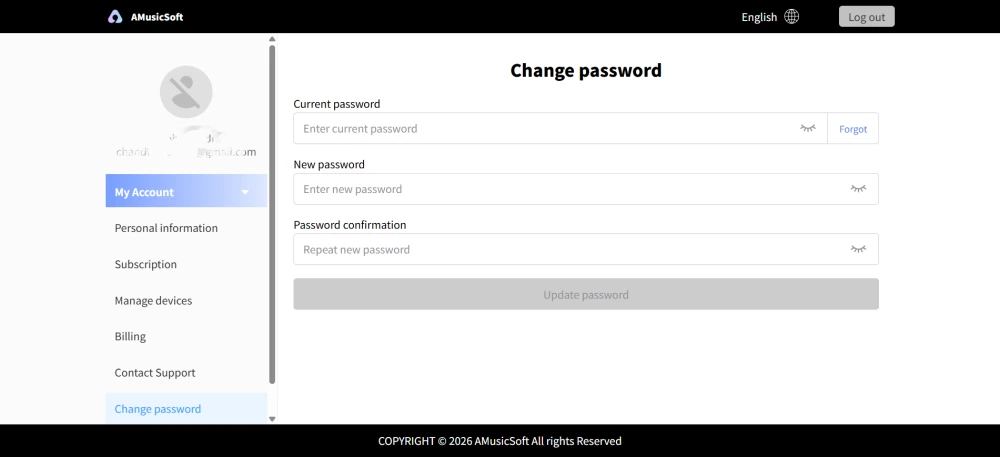
Clique no ícone de perfil > "Central de Contas" para acessar a Central de Contas da AMusicSoft, onde você pode gerenciar sua conta e informações relacionadas.
- Informações pessoais - Atualize seu nome de usuário e clique em "editar" para alterar sua foto de avatar. (Use o botão "Excluir conta" no canto inferior direito com cautela. Assim que sua conta for excluída, a conta e a chave de licença associada serão desativadas imediatamente. Certifique-se de não ter nenhuma assinatura ativa antes de prosseguir.)
- Assinaturas - Veja e gerencie suas assinaturas atuais. Se desejar cancelar uma assinatura, basta clicar em "Gerenciar assinatura" para pausá-la. Caso não consiga cancelar, entre em contato com o atendimento ao cliente ([email protected]).
- Gerenciar dispositivos - Se você estiver trocando de dispositivo e quiser usar o AMusicSoft no novo dispositivo, poderá concluir a tarefa facilmente. Caso não consiga redefinir, entre em contato com o atendimento ao cliente.
- Faturamento - Todos os detalhes do pedido podem ser encontrados aqui. Caso não consiga visualizar a fatura, entre em contato com o atendimento ao cliente.
- Alterar senha - Defina a nova senha que desejar. Se você esqueceu sua senha atual, clique em "Esqueci". Siga as instruções na tela para redefinir sua senha.
Part 6. Perguntas frequentes
-
As assinaturas da AMusicSoft não incluem assinaturas de serviços de streaming. Para acessar e converter faixas de música, os usuários precisam ter suas próprias contas em serviços de streaming. A disponibilidade de qualquer música, playlist ou álbum depende inteiramente do status da assinatura e das permissões regionais da conta de streaming que você utiliza.
Serviços de streaming por assinatura (ex.: Apple Music): Você precisa ter uma assinatura ativa vinculada à sua conta para acessar e converter conteúdo de plataformas de streaming premium.
Serviços gratuitos: Para serviços de streaming que oferecem acesso gratuito (por exemplo, Spotify), você pode usar uma conta gratuita para acessar e converter as faixas de música disponíveis. -
Sim. Você pode pré-definir o formato de saída, a taxa de amostragem, a taxa de bits e outros parâmetros de áudio em Menu > Preferências.
-
Por padrão, os arquivos convertidos são salvos na pasta de saída designada. Você pode alterar o local em Configurações gerais > Pasta de saída.
-
Sim. Acesse Configurações de Rede > Downloads Simultâneos para ajustar o número de downloads simultâneos.