Jak korzystać z konwertera muzyki Pandora firmy AMusicSoft
Część 1. Jak zarejestrować konwerter muzyki Pandora w AMusicSoft
Krok 1. Pobierz i zainstaluj AMusicSoft Pandora Music Converter
Pakiet instalacyjny można pobrać ze strony produktu lub po prostu klikając przycisk pobierania dostępny tutaj. Konwerter muzyczny AMusicSoft Pandora jest obecnie obsługiwany na urządzeniach Mac i Windows.
Krok 2. Aktywuj AMusicSoft Pandora Music Converter
Dla użytkowników bezpłatnej wersji próbnej: Jeśli korzystasz z bezpłatnej wersji próbnej, możesz bezpośrednio uruchomić program i zapoznać się z jego dostępnymi funkcjami. W bezpłatnej wersji próbnej możesz przekonwertować tylko 3 pełne utwory z Pandora Music. Aby przekonwertować więcej utworów bez ograniczeń, musisz zarejestrować się i aktywować pełną wersję oprogramowania. (Aby kupić licencję AMusicSoft, przejdź do sklepu internetowego AMusicSoft . Użytkownicy bezpłatnej wersji próbnej mogą również skontaktować się z naszym zespołem obsługi klienta, aby dowiedzieć się o najnowszych promocjach i ofertach specjalnych).
Użytkownicy płatni: Kliknij ikonę profilu w lewym dolnym rogu. Następnie wybierz „Zaloguj się przy użyciu licencji”. Wprowadź adres e-mail użyty do zakupu oprogramowania oraz kod rejestracyjny/klucz licencyjny. Kliknij „Zaloguj się”, aby dokończyć aktywację.
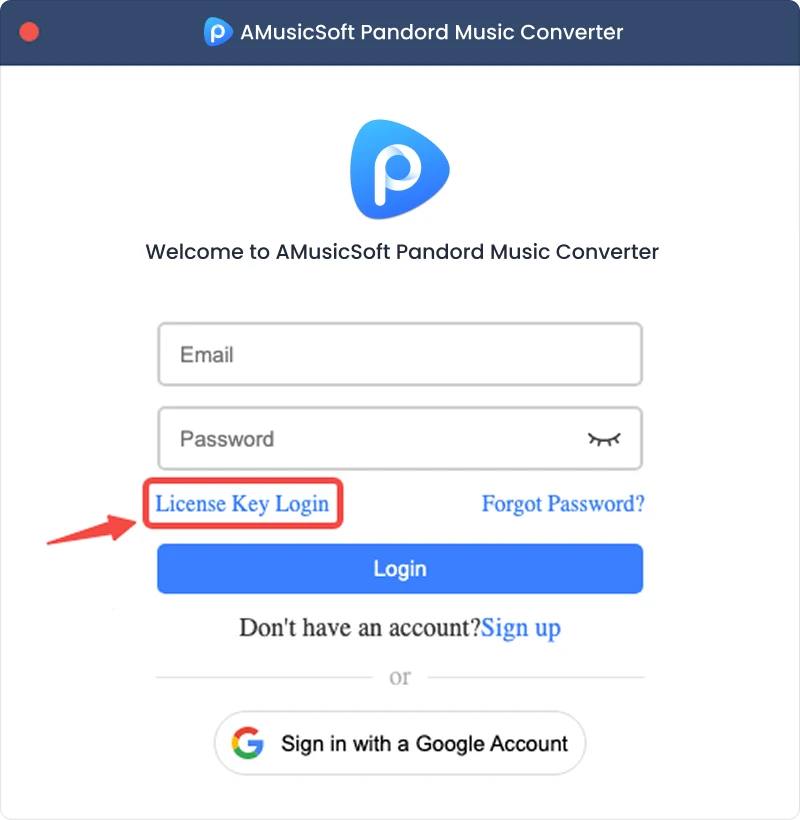
Uwaga: Upewnij się, że podałeś ten sam adres e-mail, który został powiązany z zakupem, i użyj prawidłowego kodu rejestracyjnego. Do weryfikacji może być wymagane aktywne połączenie internetowe.
Część 2. Jak przekonwertować muzykę Pandory do formatu, który Ci odpowiada
Krok 1. Wybierz Pandora Music
Uruchom AMusicSoft Pandora Music Converter. W głównym interfejsie wybierz Pandora Music.
Krok 2. Zaloguj się do Pandora Music
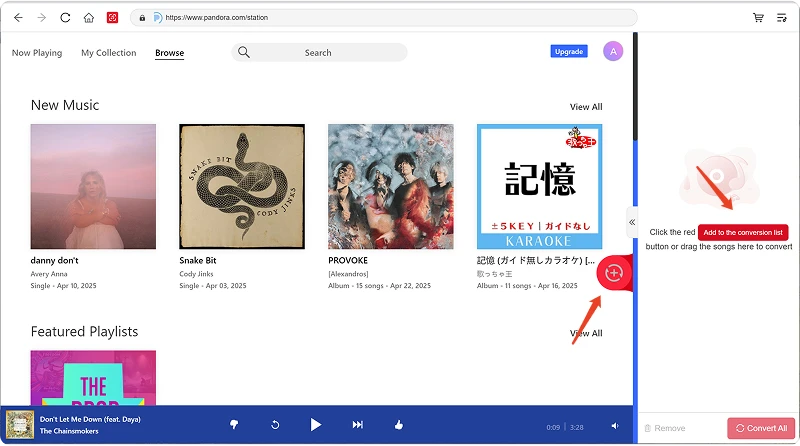
AMusicSoft Pandora Music Converter integruje oficjalne odtwarzacze internetowe obsługiwanych platform muzycznych. Po wybraniu Pandora Music, zaloguj się na swoje konto Pandora Music, aby wyszukiwać i pobierać muzykę.
Krok 3. Dodaj muzykę do programu
Po zalogowaniu się przejrzyj swoją bibliotekę muzyczną i wybierz interesujące Cię utwory, playlisty, albumy lub podcasty. Kliknij „Dodaj do konwersji” obok utworu lub playlisty, aby dodać go do listy konwersji, lub przeciągnij i upuść utwór na pływającą ikonę „+”.
Dostępność treści: Dostępność danego utworu lub albumu zależy wyłącznie od statusu subskrypcji i uprawnień regionalnych konta, z którego korzystasz.
Krok 4. Wybierz format wyjściowy i dostosuj ustawienia wyjściowe
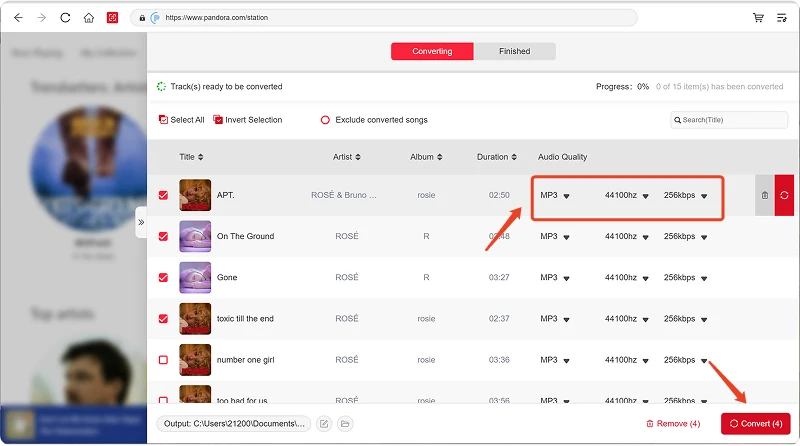
Po dodaniu muzyki otwórz menu Format wyjściowy, aby wybrać preferowany format. AMusicSoft Pandora Music Converter pozwala również dostosować dostępne parametry wyjściowe do własnych potrzeb, takie jak szybkość transmisji, częstotliwość próbkowania i inne. Na koniec kliknij opcję wyboru ścieżki wyjściowej lub folderu i wybierz miejsce zapisu plików. Jeśli nie znasz tych ustawień, możesz zachować domyślną konfigurację, aby uprościć proces konwersji.
Krok 5. Rozpocznij konwersję muzyki
Po skonfigurowaniu wszystkich ustawień przejrzyj listę konwersji i kliknij przycisk Konwertuj. Oprogramowanie rozpocznie przetwarzanie wybranych plików muzycznych. Informacje o postępie pozwalają monitorować stan konwersji. W przypadku konwersji zbiorczych możesz dodać wiele utworów i przetwarzać je razem, zamiast konwertować każdy plik osobno.
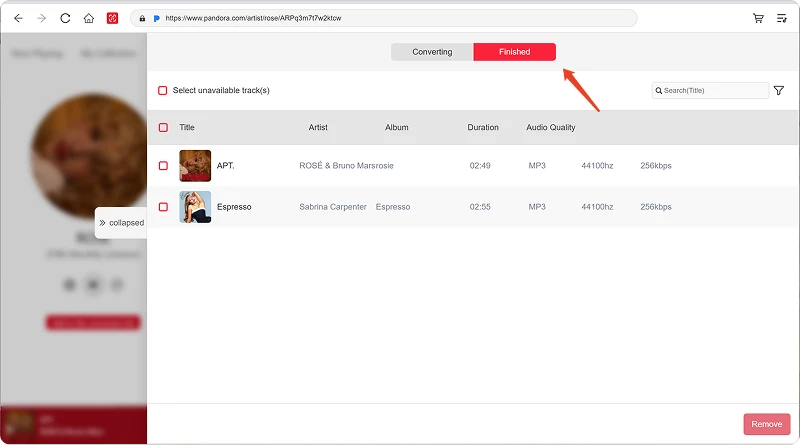
Krok 6. Znajdź przekonwertowaną muzykę
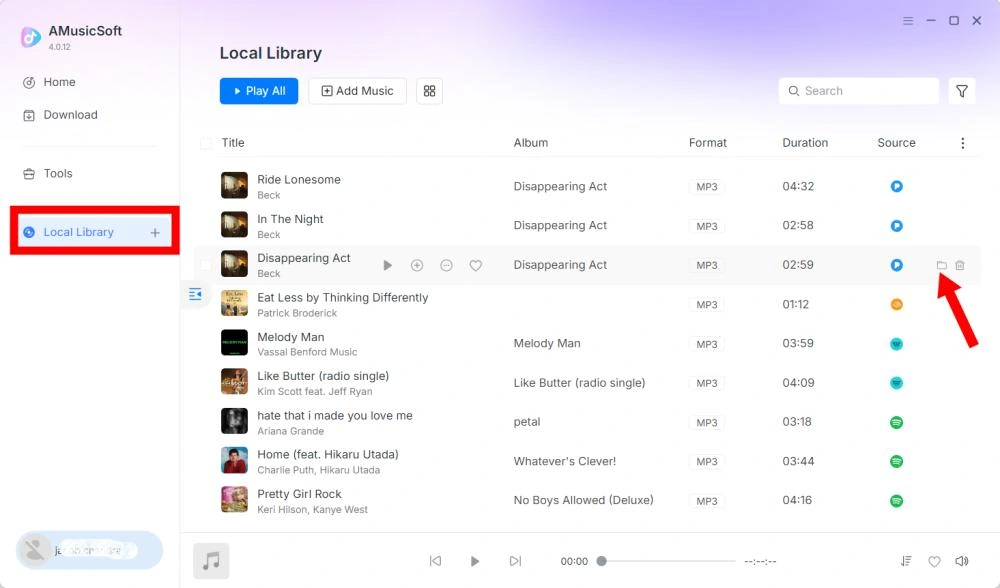
Po zakończeniu konwersji otwórz wybrany folder wyjściowy, aby uzyskać dostęp do przekonwertowanych plików. Możesz następnie przenieść pliki na kompatybilne urządzenia, uporządkować je w lokalnej bibliotece muzycznej lub odtworzyć w obsługiwanych odtwarzaczach multimedialnych.
Część 3. Co mam zrobić, jeśli nie mogę pobrać muzyki?
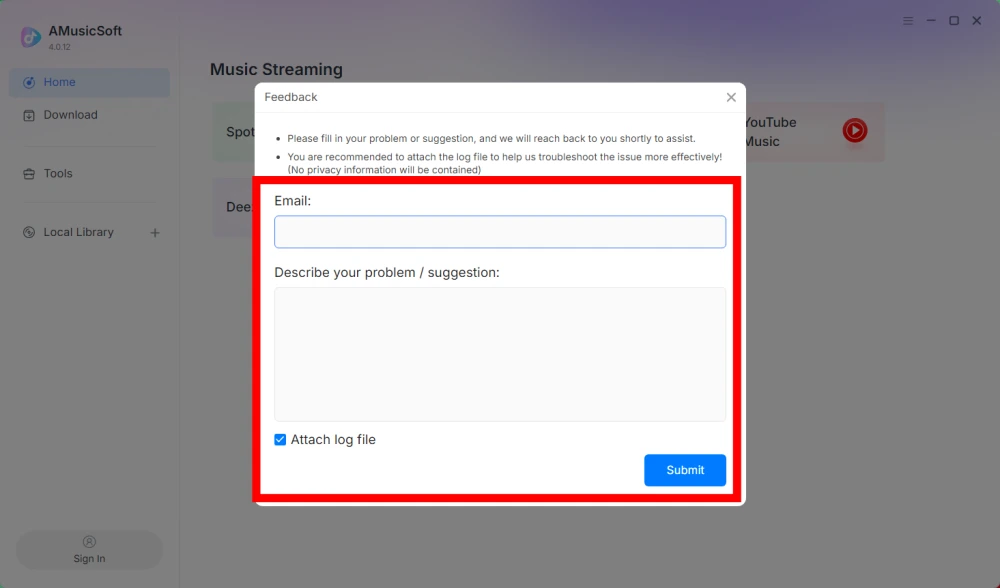
Jeśli napotkasz problem podczas pobierania lub konwertowania muzyki, prześlij dziennik oprogramowania i zrzut ekranu z błędem do naszego zespołu wsparcia. Te informacje pomogą nam zidentyfikować problem i szybciej znaleźć rozwiązanie.
- Kliknij menu w prawym górnym rogu programu i wybierz „Prześlij opinię”.
- Opisz swój problem i wpisz klucz licencyjny w polu tekstowym.
- Na koniec, przed wysłaniem, zaznacz pole wyboru „Załącz plik dziennika”.
Część 4. Jak wstępnie ustawić ustawienia wyjściowe i parametry audio
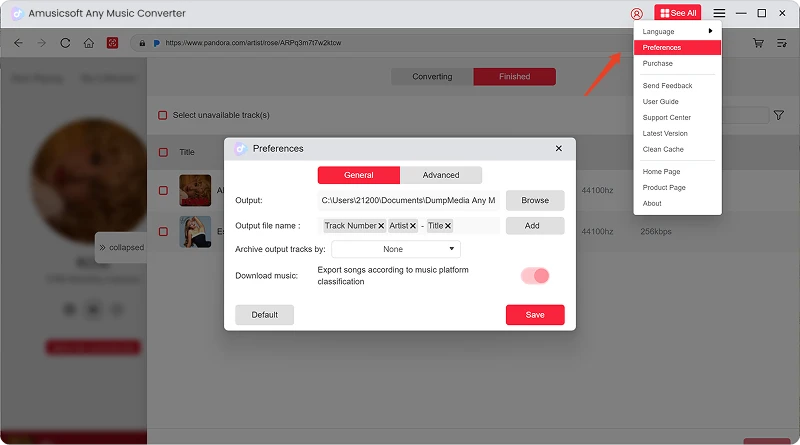
Konwerter AMusicSoft Any Music pozwala dostosować ustawienia pobierania i parametry audio, aby kontrolować proces konwersji i jakość wyjściową. Możesz dostosować te ustawienia bezpośrednio z listy konwersji przed jej rozpoczęciem lub przejść do Menu > Preferencje, aby wcześniej ustawić preferowane parametry.
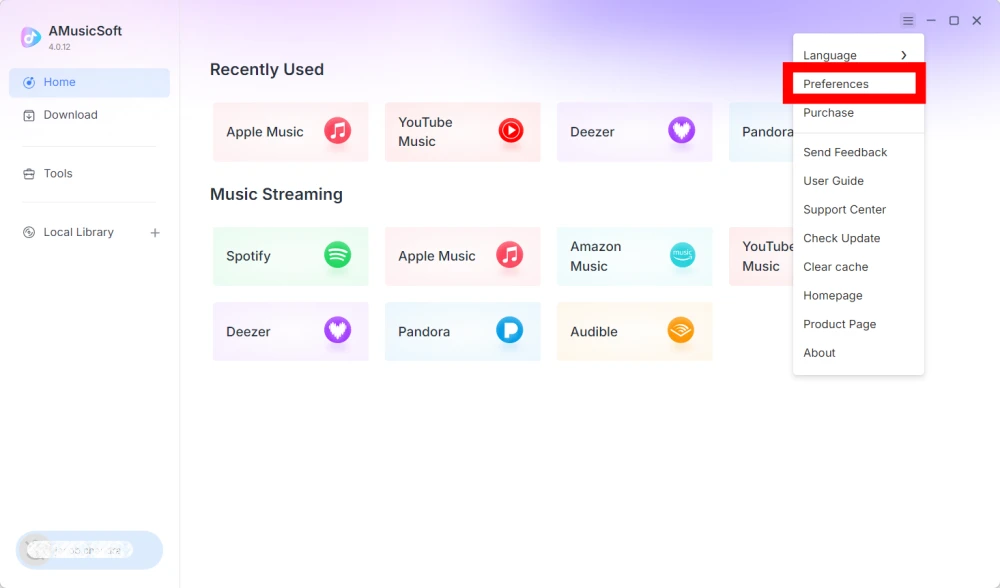
Wybierz język
Wybierz preferowany język interfejsu oprogramowania.
Ustawienia ogólne
- Wygląd — dostosuj wygląd interfejsu oprogramowania.
- Folder wyjściowy — wybierz folder, w którym będą zapisywane przekonwertowane pliki.
- Wzorzec automatycznego nadawania nazw — dostosuj format nazewnictwa plików.
- Archiwizuj według — wybierz sposób porządkowania pobranej muzyki.
- Po konwersji — wybierz, co ma się stać po zakończeniu konwersji.
- Zapisz muzykę — włącz lub wyłącz zapisywanie przekonwertowanych plików muzycznych.
- Teksty piosenek - włącz lub wyłącz zapisywanie tekstów piosenek razem z muzyką.
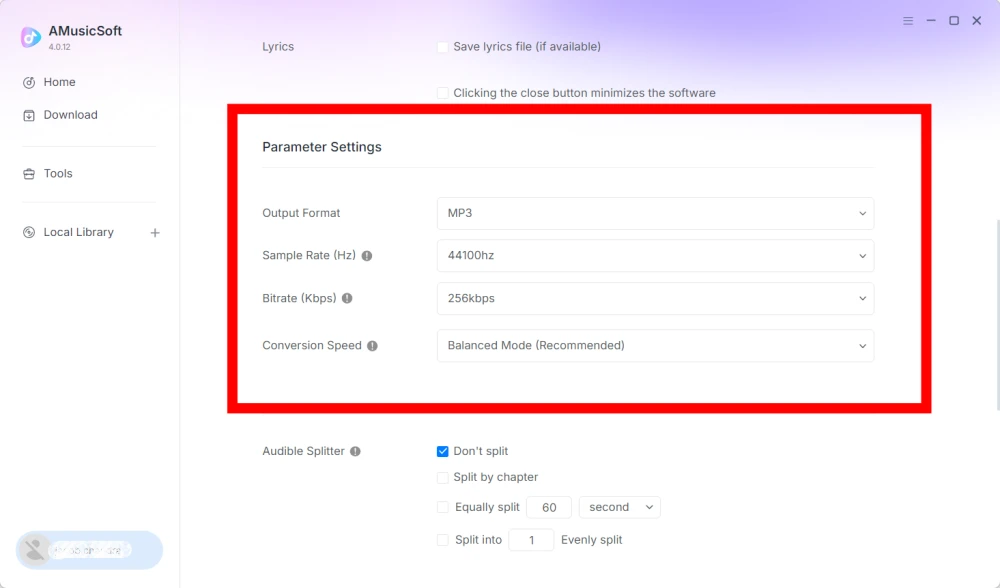
Ustawienia parametrów
- Format wyjściowy — wybierz żądany format wyjściowy dźwięku.
- Częstotliwość próbkowania (Hz) – ustaw częstotliwość próbkowania dźwięku. (Zakres od 22050 Hz do 48000 Hz.)
- Szybkość transmisji (kb/s) – ustaw szybkość transmisji dźwięku, aby kontrolować jakość wyjściową. (Zakres od 128 kb/s do 320 kb/s.)
- Szybkość konwersji – dostosuj szybkość konwersji do swoich potrzeb.
- Audible Splitter – podziel audiobooki Audible na mniejsze sekcje.
Ustawienia odtwarzania
Przejściowe przejścia między utworami – umożliwiają płynne przejścia między utworami podczas odtwarzania.
Ustawienia sieci
- Jednoczesne pobieranie – ustaw liczbę plików muzycznych, które chcesz pobrać jednocześnie.
- Proxy — skonfiguruj ustawienia proxy dla połączeń sieciowych.
Inne ustawienia
Okna pop-up — włącz lub wyłącz powiadomienia w postaci okienek pop-up.
Część 5. Jak zarządzać kontem AMusicSoft
Możesz zarządzać swoim kontem AMusicSoft i informacjami o subskrypcji w centrum kont.
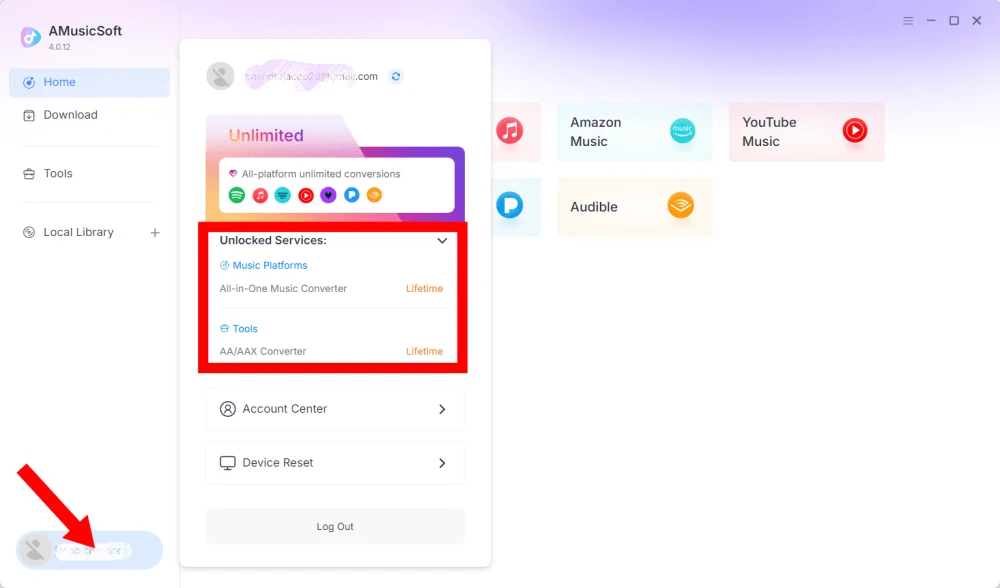
Wyświetl odblokowane usługi
Kliknij ikonę profilu w lewym dolnym rogu. Następnie możesz sprawdzić usługi i funkcje aktualnie odblokowane na Twoim koncie.
Dostęp do Centrum Kont
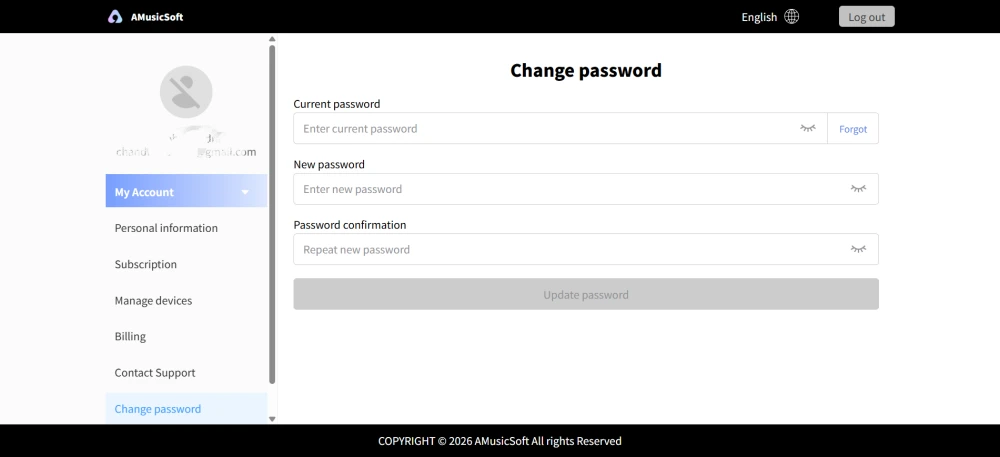
Kliknij ikonę profilu > „Centrum konta”, aby przejść do Centrum konta AMusicSoft, gdzie możesz zarządzać swoim kontem i powiązanymi informacjami.
- Dane osobowe – zaktualizuj swoją nazwę użytkownika i kliknij „Edytuj”, aby zmienić zdjęcie awatara. (Używaj ostrożnie przycisku Usuń konto w prawym dolnym rogu. Po usunięciu konta, konto i powiązany z nim klucz licencyjny zostaną natychmiast dezaktywowane. Przed kontynuowaniem upewnij się, że nie masz aktywnej subskrypcji.)
- Subskrypcja – Przeglądaj i zarządzaj swoimi aktualnymi subskrypcjami. Jeśli chcesz anulować subskrypcję, kliknij „Zarządzaj subskrypcją”, aby ją wstrzymać. Jeśli nie możesz anulować, skontaktuj się z obsługą klienta ([email chroniony]).
- Zarządzaj urządzeniami – Jeśli przełączasz się na inne urządzenie i chcesz korzystać z AMusicSoft na nowym, możesz łatwo wykonać to zadanie. Jeśli nie możesz zresetować urządzenia, skontaktuj się z obsługą klienta.
- Faktura – wszystkie szczegóły zamówienia są dostępne. Jeśli nie możesz sprawdzić faktury, skontaktuj się z obsługą klienta.
- Zmień hasło – Ustaw nowe hasło, które Ci odpowiada. Jeśli zapomniałeś swojego obecnego hasła, kliknij „Zapomniałem”. Postępuj zgodnie z instrukcjami wyświetlanymi na ekranie, aby zresetować hasło.
Część 6. FAQ
-
Subskrypcje AMusicSoft nie obejmują subskrypcji serwisów streamingowych. Aby uzyskać dostęp do utworów muzycznych i je konwertować, użytkownicy muszą najpierw posiadać własne konta w serwisach streamingowych. Dostępność utworu, playlisty lub albumu zależy wyłącznie od statusu subskrypcji i uprawnień regionalnych używanego konta streamingowego.
Usługi przesyłania strumieniowego oparte na subskrypcji (np. Apple Music): Aby uzyskać dostęp do treści z płatnych platform przesyłania strumieniowego i konwertować je, musisz mieć aktywną subskrypcję powiązaną ze swoim kontem.
Usługi bezpłatne: W przypadku serwisów streamingowych oferujących bezpłatny dostęp (np. Spotify) możesz skorzystać z bezpłatnego konta, aby uzyskać dostęp do dostępnych utworów muzycznych i konwertować je. -
Tak. Możesz ustawić format wyjściowy, częstotliwość próbkowania, przepływność i inne parametry audio w Menu > Preferencje.
-
Domyślnie przekonwertowane pliki są zapisywane w wyznaczonym folderze wyjściowym. Lokalizację można zmienić w Ustawieniach ogólnych > Folder wyjściowy.
-
Tak. Przejdź do Ustawień sieciowych > Jednoczesne pobieranie, aby dostosować liczbę jednoczesnych pobrań.